
Epicflow automatically creates backups of your data in accordance with its internal backup and disaster recovery policies to help ensure business continuity and data protection.
In addition to these automated backups, you can use option described bellow to create and manage your own backups, giving you full control over your data at all times. This allows you to maintain independent copies whenever needed and align your backup strategy with your organization’s policies and compliance requirements.
In this article, a backup refers to exporting your Epicflow data and storing it in a local file. This backup allows you to restore the previous state of your data if an import fails or produces unexpected results. To prevent data loss, always create a backup before importing any changes.
Note: Each data type is exported separately. The master data only needs backing up once, and after any major change. The projects can become a large file, so they are split by frequency, as shown in the schedule below.
Backup schedule
| What | How often |
| Master data: Resource Pool, Attributes, Calendar, Competencies, Availability | Once, and after any major change |
| Projects (Project Data): Active + Inactive projects | Twice a week |
| Projects (Project Data): Closed + Archived projects | Once a month |
Before you begin
- Log in with an account that has the Administrator role.
- This account must have access to all data you want to back-up.
- The account needs the System Maintenance permission (Global Permission group). Without this permission the export options are not visible.
Step 1. Open the export dialog
- Log in with an account that has the Administrator role.
- Go to Settings (the gear icon on the left).
- Click Maintenance in the top right corner.
- Select the Export tab.
Step 2. General settings (the same for every export)
These settings are the same for every export and do not need changing each time.
- File format: Excel.
- Leave Export as ZIP unticked.
- The Decimal separator, Date format and Thousands separators options are disabled for Excel and do not need to be set.
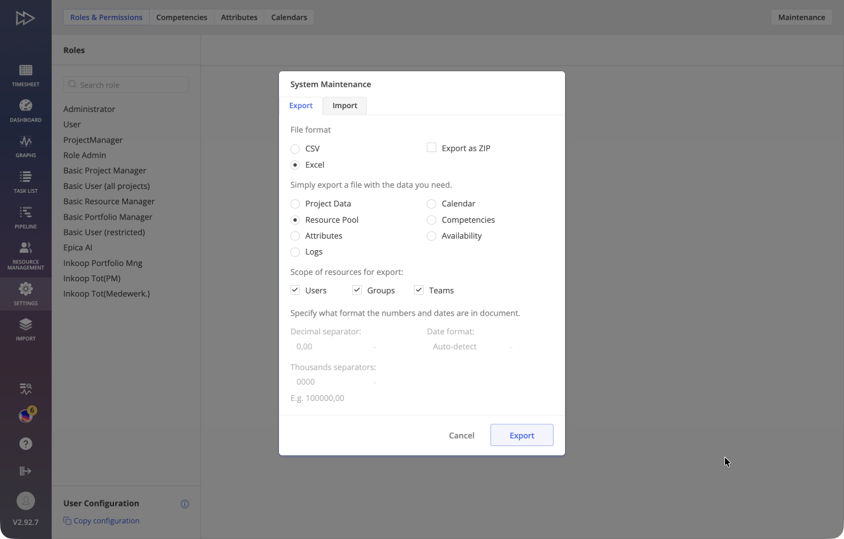
#Screen 1 System Maintenance, Export tab (example: Resource Pool)
Step 3. Export the master data (each item separately)
The master data consists of five items: Resource Pool, Attributes, Calendar, Competencies and Availability. Each item is exported separately, using the general settings from step 2. This step is needed for the first backup and after any major change.
Resource Pool
- Select Resource Pool.
- Under Scope of resources for export, tick all three: Users, Groups and Teams.
- Click Export and save the file.
Attributes, Calendar, Competencies and Availability
These four items follow the same procedure. Repeat the two steps below for each item:
- Select the item (Attributes, Calendar, Competencies or Availability).
- Click Export and save the file.
Step 4. Export the projects (Project Data)
Projects can produce a large file, so they are exported in two routines with different frequencies. In both cases select Project Data and keep the general settings from step 2. Leave Include steps in selected projects ticked, so the tasks and steps are included in the backup.
A. Twice a week: current projects
- Select Project Data.
- Under Scope of project data for export, tick: Active projects and Inactive projects. Leave Closed and Archived unticked.
- Check that Include steps in selected projects is ticked.
- Click Export and save the file.
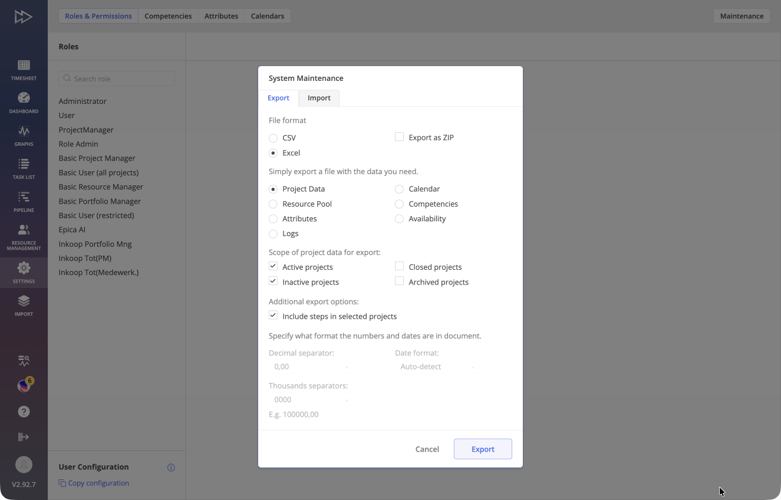
#Screen 2 Project Data export, scope Active + Inactive
B. Once a month: closed and archived projects
- Select Project Data.
- Under Scope of project data for export, tick: Closed projects and Archived projects. Leave Active and Inactive unticked.
- Check that Include steps in selected projects is ticked.
- Click Export and save the file.
Step 5. Store the backup
Store the exported files in a dated folder, for example Epicflow-backup-2026-07-24, in a safe location. Keep the monthly project export (Closed + Archived) separate, so it does not have to be remade every week. These files are the restore point: if an import goes wrong, re-import them to return to the previous state.
Restoration Procedure
The restoration procedure is intentionally not included in this article because it is recommended that the process be performed with the assistance of an Epicflow specialist. Restoring data or system configurations may have environment-specific implications, and guidance from the Epicflow team helps ensure the procedure is completed correctly and safely. If restoration is required, an Epicflow specialist can assist the customer throughout the process and provide support tailored to their specific environment.