
Notifications tell you when something happens to your tasks. For example, Epicflow can send you an email when one of your tasks becomes ready to start.
You set this up with a notification rule. A rule answers three questions:
- Which tasks? You choose them with conditions, for example “tasks assigned to me that are ready to start”.
- Where to send? By email, to a webhook (another system), or both.
- What to say? You write the message, or use the one that is already filled in.
Each user makes their own rules. Nobody else sees them.
Step 1. Open notification settings
- In the left menu, click the bell icon. The Updates panel opens.
- In the Updates panel, click the gear icon. The Notification settings window opens (Screen #1).
Another way: click your avatar at the bottom of the left menu, then click the bell with a gear icon under your name. The same window opens.
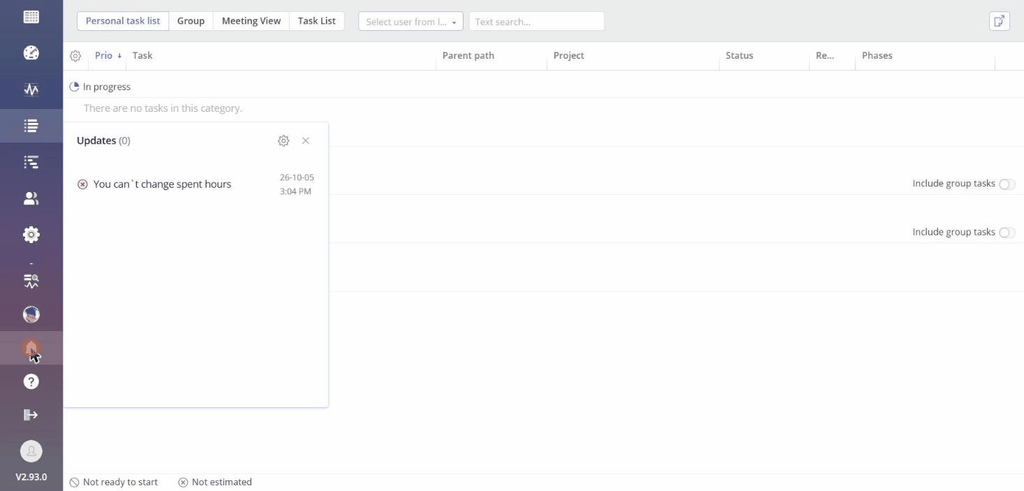
Screen #1 – Opening notification settings
Step 2. Start a new rule
- In the Notification settings window, click + Notification rule. A menu opens (Screen #2).
- Choose one option:
- New notification – an empty rule. You fill in everything yourself.
- Under From template, click My task becomes ready to start – a rule that is already filled in. You only check it and save it.
The rule opens for editing (Screen #3).
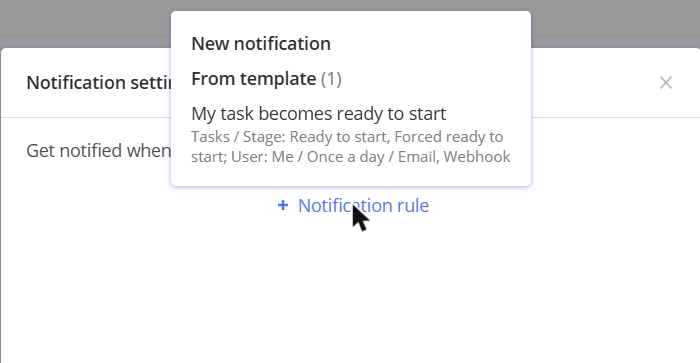
Screen #2 – New notification or From template
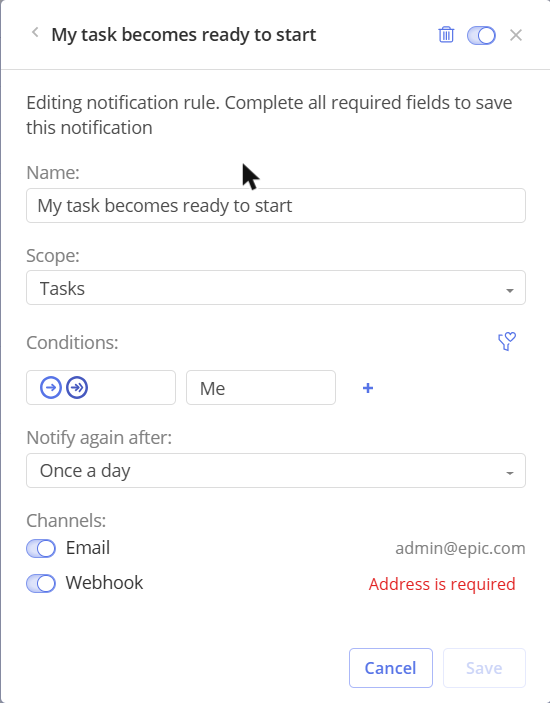
Screen #3 – Editing a notification rule
Step 3. Fill in the rule
Go through the fields from top to bottom.
- Name (required). Type a name that tells you what the rule is for, for example My tasks are ready.
- Scope. Leave Tasks. This is the only option for now.
- Conditions. Choose which tasks the rule is about:
- Click + and pick a field, for example Task stage or User name (Screen #4). Then pick the values you want.
- Add more conditions with +. A task must match all of them.
- Already have a filter saved in the Group Task List? Click the filter icon and choose it from Saved filters. To save the current conditions as a new filter, click Save new.
- Notify again after. Choose how long Epicflow waits before it tells you about the same task again: from Every 5 minutes to Once a week. For example, with Once a day you get at most one notification per task per day, even if the task changes several times.
- Channels (at least one is required). Turn on Email, Webhook or both. Then set them up in Step 4 and Step 6.
Changed something in a rule made from the template and want to undo it? Click the round arrow icon next to the field to bring back the template’s original setting.
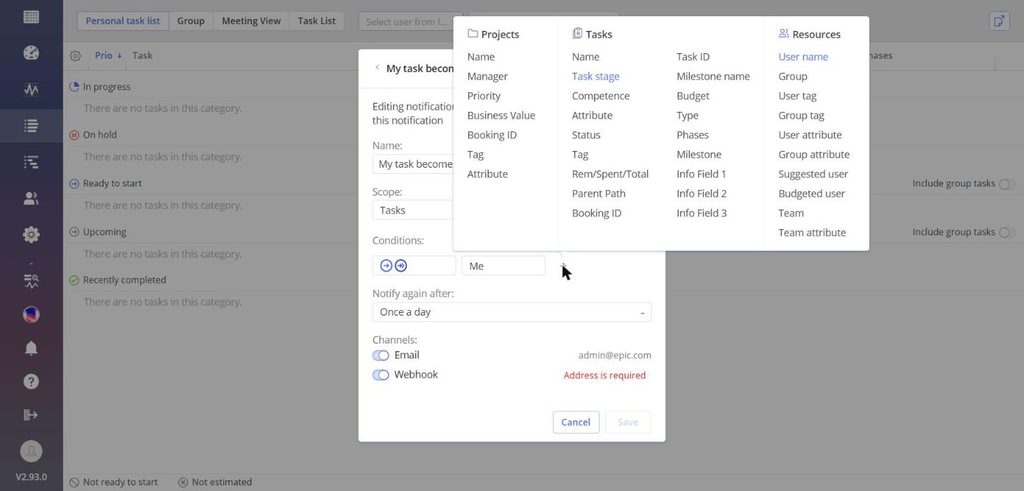
Screen #4 – Adding a condition
Step 4. Set up the email
- Next to Email, click the pencil icon. The Email window opens (Screen #5).
- Check the fields (see the table below).
- Click Save.
| Field | What to do |
|---|---|
| My email address (required) | Your email is already filled in. Change it if the notification should go to another address. |
| CC | Optional. Add people who should get a copy. |
| BCC | Optional. Add people who should get a hidden copy. |
| Topic (required) | The email subject. It is already filled in; you can change it. |
| Text of the letter | The email text. It is already filled in. To change it, see Step 5. |
To add several addresses to CC or BCC, separate them with commas: anna@example.com, mark@example.com.
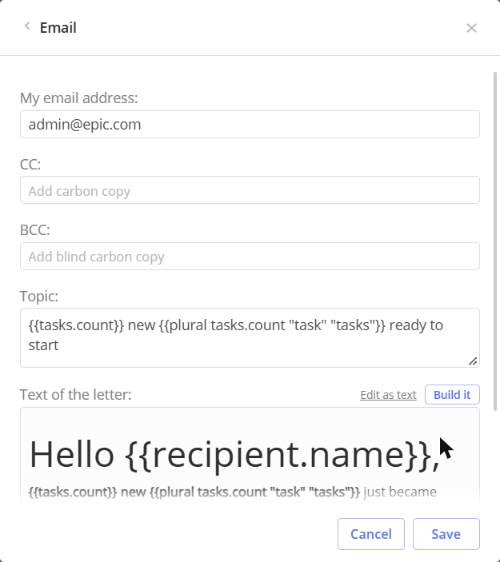
Screen #5 – Email channel settings
Step 5. Change the message (optional)
The email text is already filled in, so you can skip this step. If you want to change it:
- In the Email window, next to Text of the letter, click Build it. The Message builder opens (Screen #6, Screen #7).
- Change the text:
- To add a part of the message, click a block under Add: Text (a line of text), For every task (repeats once for each task), Only if … (shows only when something is true, for example when there are tasks), Bulleted list or Numbered list (one line per task).
- To add information that changes every time, such as your name or the number of tasks, click a value under Values. It appears where your cursor is. You can also drag it into the text.
- Check the result under What it will say. Click the three buttons to see the message in different cases:
- Matching tasks – there are tasks to report.
- No tasks – there are no tasks.
- Awkward values – task and user names with unusual characters, such as quotes, apostrophes or the & sign. Use it to check that these names still look right in your message.
- Click OK. Then click Save in the Email window.
At the top of the builder, Start from offers three ready-made messages: Daily digest, Deadline alert and Weekly summary. These are only examples of how a message can look. They do not change which tasks you are told about or when. For example, Deadline alert does not check deadlines. To be told about upcoming deadlines, you set that in the rule’s conditions. Choosing an example replaces your text; Epicflow asks you first, and you can click Undo.
If a yellow warning appears at the bottom of the builder, some value may be empty for some tasks. The message still works; the warning only tells you that part of the text may come out blank.
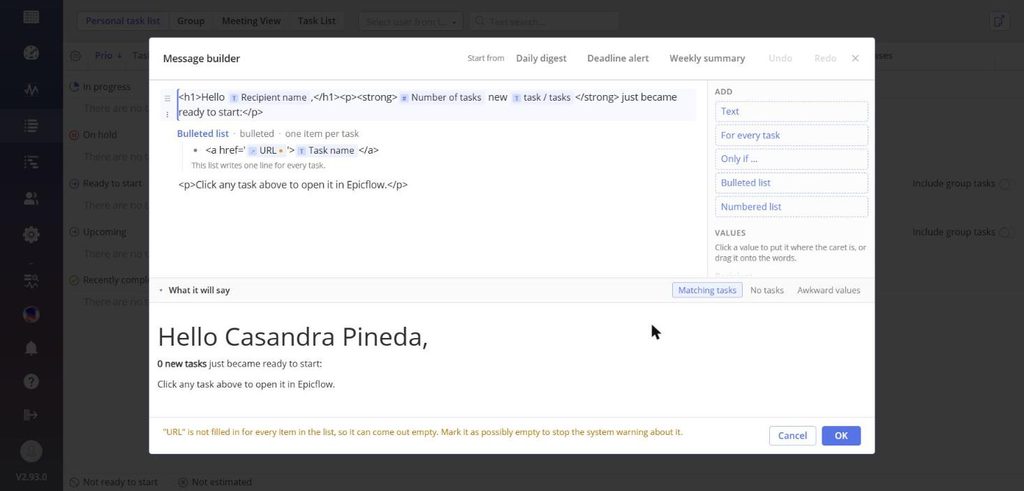
Screen #6 – Message builder
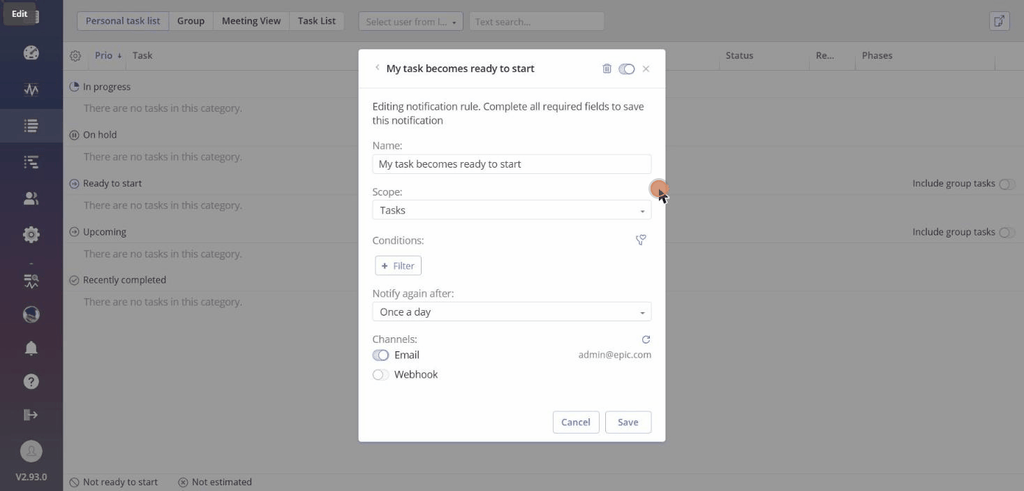
Screen #7 – Opening the message builder from the email settings
Step 6. Set up a webhook (optional)
Use a webhook if another system should receive the notification, for example your own tool. You need the details from the person who manages that system.
- Next to Webhook, click the pencil icon. The Webhook window opens (Screen #8).
- Fill in the fields (see the table below).
- Click Save.
| Field | What to do |
|---|---|
| Method | Choose POST, PUT or PATCH. POST is selected by default. |
| Address (required) | Paste the address that should receive the notification. |
| Content type | Leave application/json. |
| Headers | Optional. Add headers if the other system needs them, for example an access key. |
| Request body | The data that is sent. It is already filled in with the notification and task details. Change it only if the other system needs a different format. |
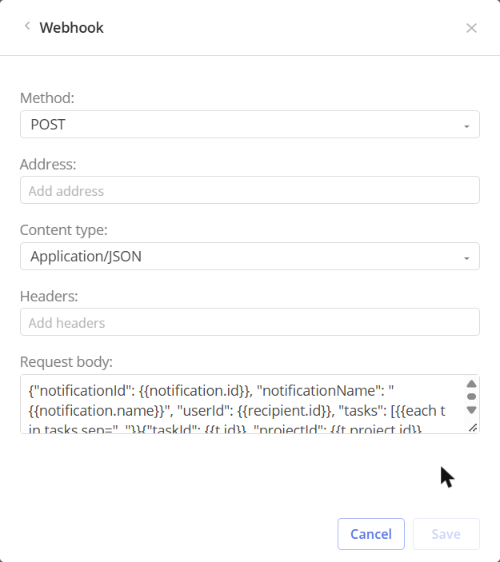
Screen #8 – Webhook channel settings
Step 7. Save the rule
- Click Save at the bottom of the rule. If Save is grey, a required field is still empty; look for the red text.
- The rule appears in the Notification settings window (Screen #9). It is on, and it starts working straight away.
To change a rule later, hover over it in the list and use the icons:
| Icon | What it does |
|---|---|
| Two squares | Makes a copy of the rule |
| Bin | Deletes the rule. Epicflow asks you to confirm. |
| Pencil | Opens the rule for editing |
| Switch | Turns the rule off or on. The rule is kept. |
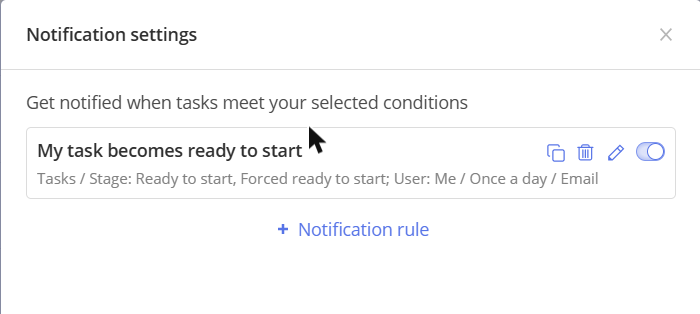
Screen #9 – A notification rule and its actions
Example: get an email when your task is ready to start
This is the fastest way to start (Screen #10).
- Open Notification settings (Step 1).
- Click + Notification rule. Under From template, click My task becomes ready to start.
- Leave the conditions as they are: your tasks that are Ready to start or Forced ready to start. A task is “forced ready to start” when someone has manually moved it from Upcoming to Ready to start with the Force Ready To Start option, even though the tasks before it are not finished yet.
- Leave Notify again after at Once a day.
- Leave Email on. Turn Webhook off. If you need a webhook, set it up in Step 6 instead.
- Click Save.
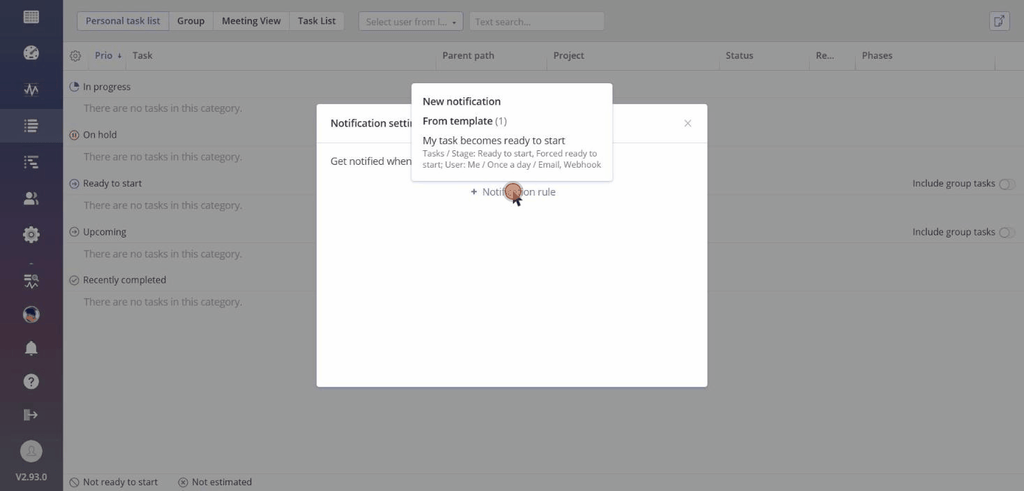
Screen #10 – Creating a rule from the template
Done. When one of your tasks becomes ready to start, you get an email with a list of these tasks. Click a task in the email to open it in Epicflow.
Current limitations
- Rules work only with tasks.
- You can send notifications by email or webhook. Notifications inside Epicflow are not available yet.
- There is one rule template. You cannot create your own templates yet.
- The ready-made messages in the message builder (Daily digest, Deadline alert, Weekly summary) cannot be changed or deleted.