
A project group is a logical grouping of related projects that helps you organize and manage projects that share common characteristics. Groups can be nested, have their own phases, and show combined figures for the projects inside them.
Create a project group
- Navigate to the Pipeline page.
- Click the arrow next to + Project and select Project group.
- Enter the Project group name (required).
- Optionally fill in the other fields:
- Group project ID – your own identifier for the group.
- Parent project group – nests the new group inside an existing group.
- Group items – the projects and project groups to include.
- Tags, Description and Attributes.
- Click Create.
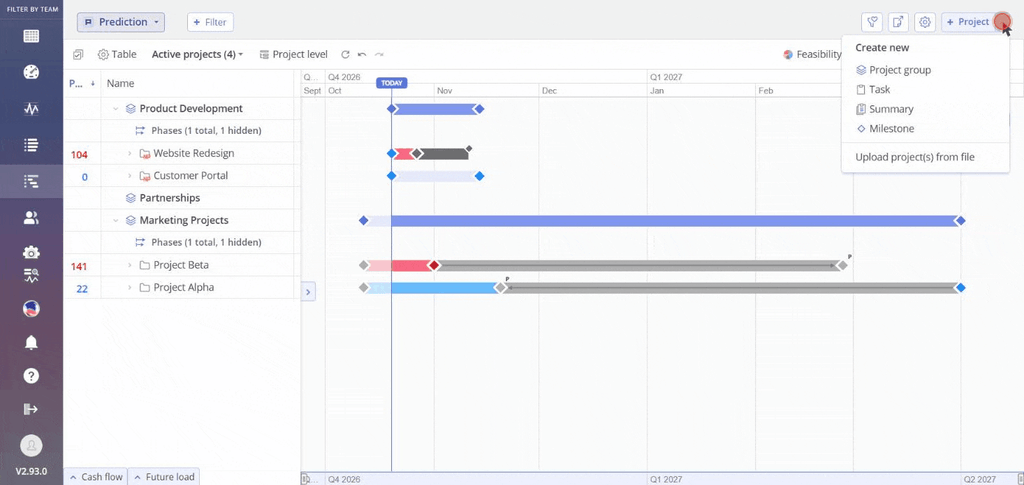
Screen #1 – Create a project group
You can also create a group from an existing group: click the three dots next to the group in the Pipeline and select Create project group. The new group is created inside it. From the same menu, Create project creates a new project directly inside the group.
Add projects to a group
You can add projects to a group in two ways:
- When you create the group – select the projects under Group items.
- From a project’s card – open the project card, click + Parent group under Project group, and select the group.
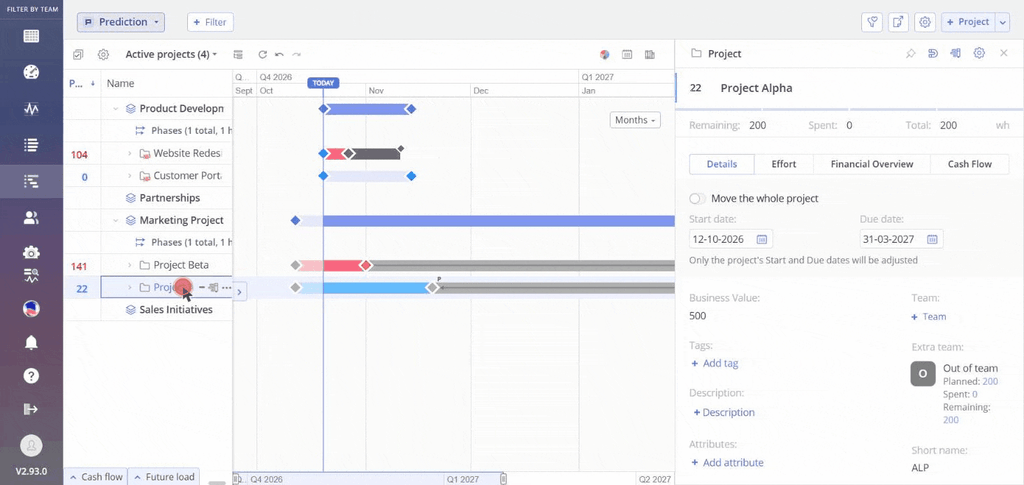
Screen #2 – Add a project to a group from its card
Nest project groups
A project group can contain other project groups. To nest a group, select its parent in Parent project group, either when you create the group or on the group’s card.
You can also nest existing groups the other way round: when you create a new group, select the existing groups under Group items, and they move inside the new group.
When you create a group inside a parent group, the Group items list shows only the projects that already belong to that parent group.
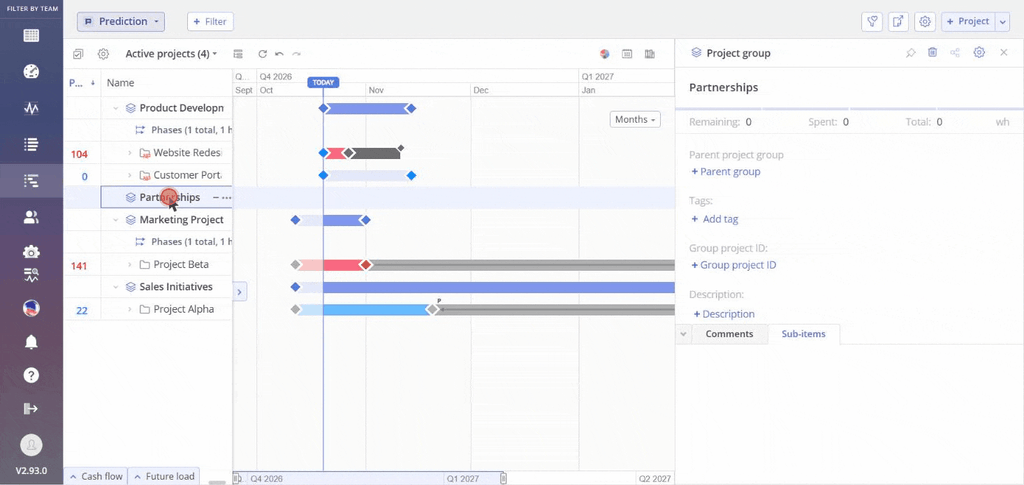
Screen #3 – Nest a project group
Project groups in the Pipeline
Project groups appear in the Pipeline above the projects they contain, with their own bar on the timeline. Group phases appear in a Phases row under the group.
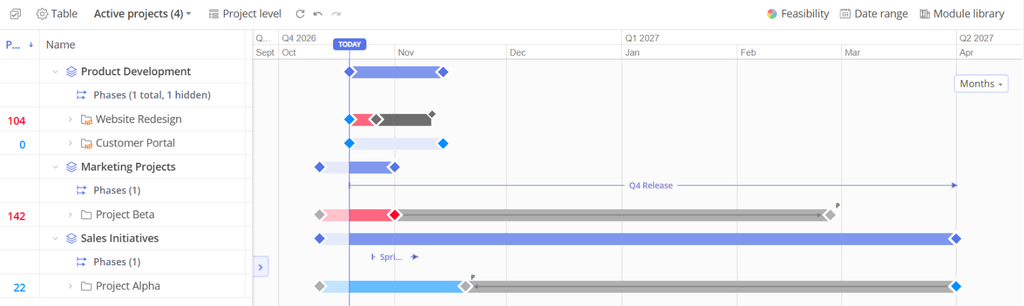
Screen #4 – Project groups in the Pipeline
Expand levels. Click Expand in the toolbar and select Expand to project level to show the projects inside all groups, or Collapse all to show only the top level. When the Pipeline is expanded to project level, the button reads Project level.
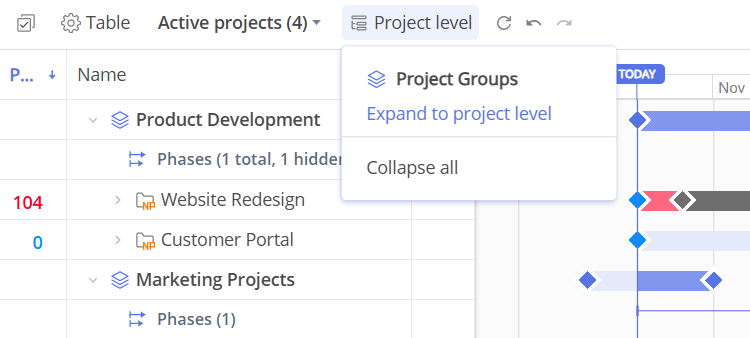
Screen #5 – Expand menu
Empty project groups. A group with no projects is hidden after you refresh the page. To show empty groups, click the Settings icon in the top right corner and select Empty project groups under View Settings.
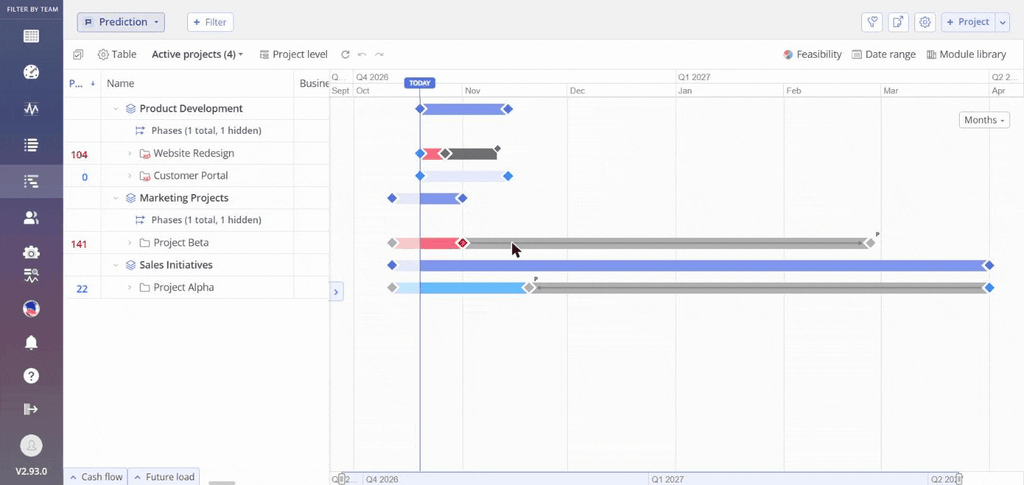
Screen #6– Show empty project groups
Filters. Click + Filter and use the Project Group section to filter the Pipeline by group Name, Tag or Attribute.
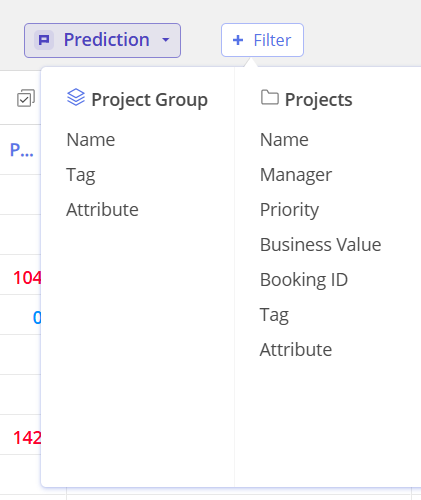
Screen #7 – Project Group filters
Business Value of a project group
A project group shows the average Business Value of the projects in it. This value is shown only in the Business Value column of the Pipeline; it is not shown on the project group card. To show the column, click Table and select Business Value under Columns.
The value is the sum of the projects’ Business Values divided by the number of projects, rounded to a whole number. For example, a group with two projects whose Business Values are 850 and 650 shows 750.
- All projects in the group are counted, including projects in nested groups. A parent group averages all of these projects, not the values of its nested groups.
- A project whose Business Value has not been set is counted with the default value.
- The group’s Business Value can’t be edited. To change it, change the Business Value of its projects.
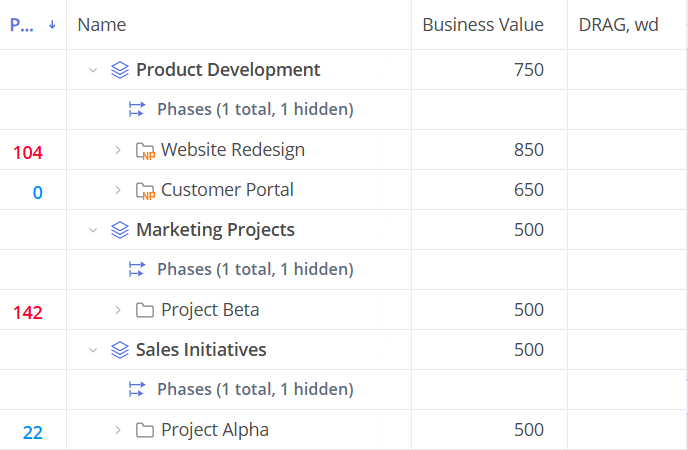
Screen #8 – Business Value of a project group
The project group card
Click a project group’s name in the Pipeline to open its card. The top of the card shows the Remaining, Spent and Total work of all projects in the group.
| Field | What it holds |
|---|---|
| Parent project group | The group this group is nested in. |
| Tags | Tags for filtering and organizing. |
| Group project ID | Your own identifier for the group. |
| Description | Free text about the group. |
| Payment term, days | The invoice payment term used in Cash Flow. It is inherited from Company settings unless you set a value for the group. |
| Attributes | Attributes for filtering and organizing. |
Below the fields, the Comments tab holds the group’s comments and the Sub-items tab lists the projects and nested groups in it.
To choose which fields the card shows, click the Settings icon in the card header.
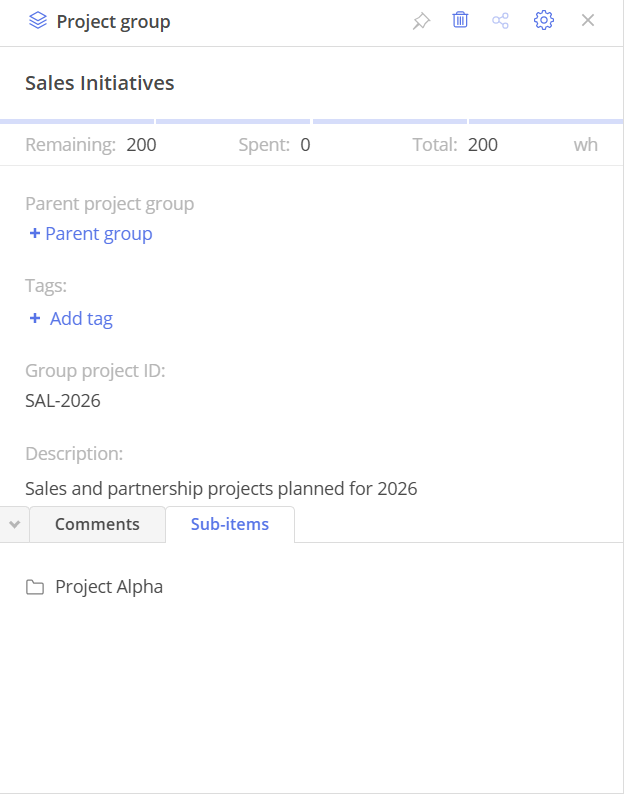
Screen #9 – The project group card
Edit a project group
- Navigate to the Pipeline page.
- Click the project group’s name to open its card.
- Make your changes. To rename the group, click its name at the top of the card.
- Click Save in the Save all changes? bar at the bottom of the card.
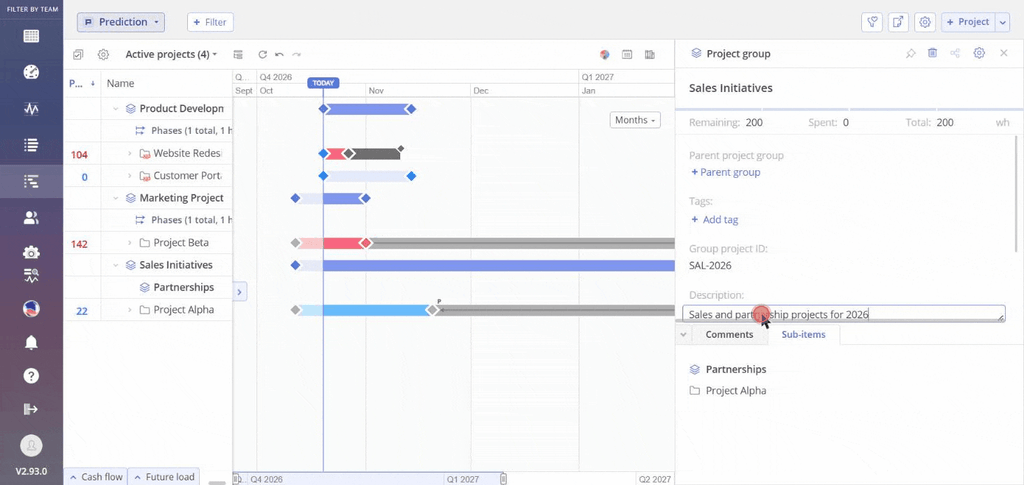
Screen #10 – Edit a project group
Project group phases
A project group can have its own phases, for example a release or sprint that spans several projects.
- Click the three dots next to the project group and select Create phase.
- Enter the Name and, optionally, a Short name.
- Select the Type: Customized, Release or Sprint.
- Optionally change the Business value, Status and Color.
- Select the Start date and Due date. The dates must fall within the dates of the group’s projects.
- To add more phases one after another, select Create another phase.
- Click Create.
The phase appears in the Phases row under the group and on the timeline.
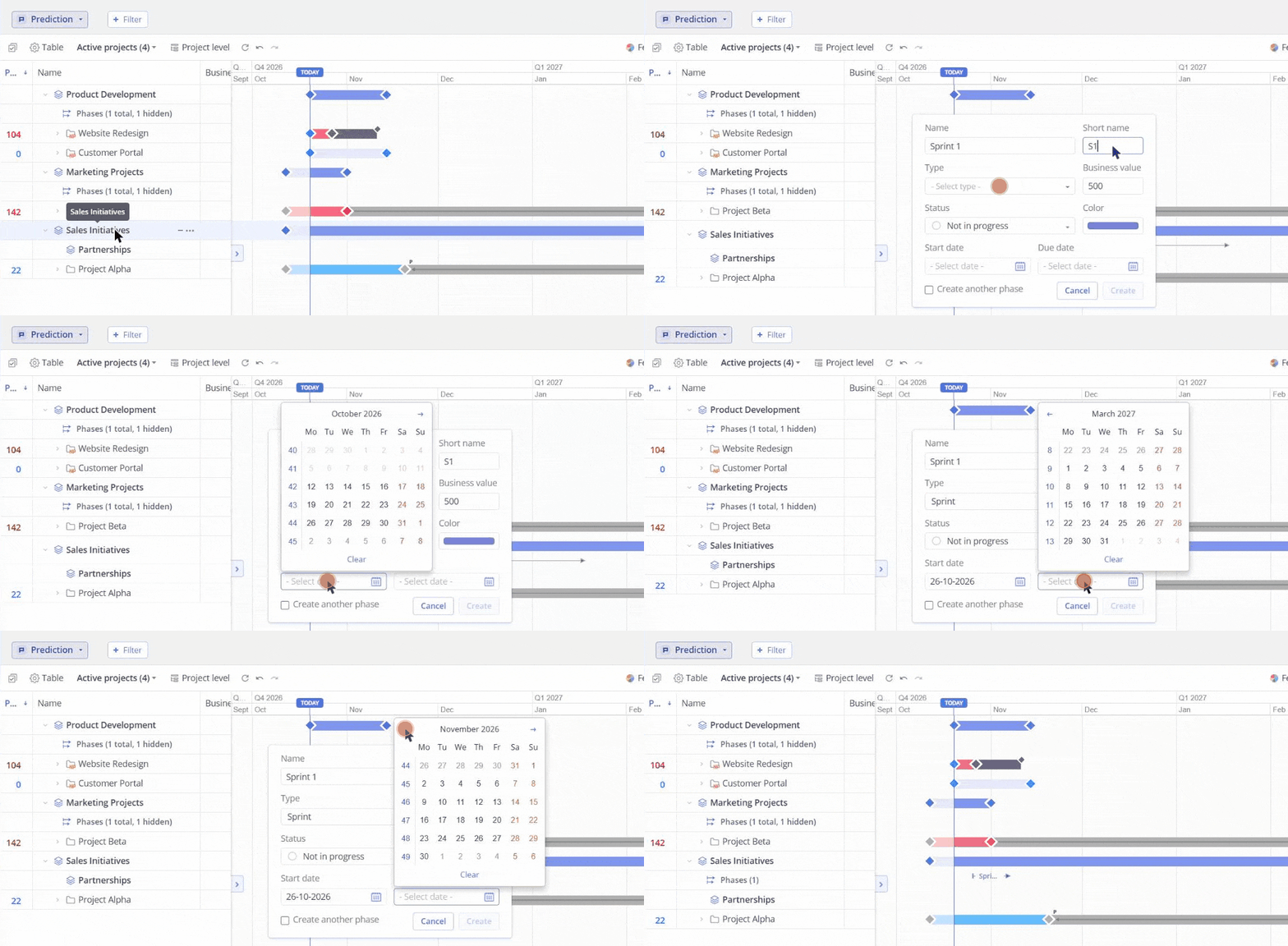
Screen #11 – Create a project group phase
Delete a project group
- Click the three dots next to the project group and select Delete, or click the Delete icon in the header of the group’s card.
- Read the warning and click Delete to confirm.
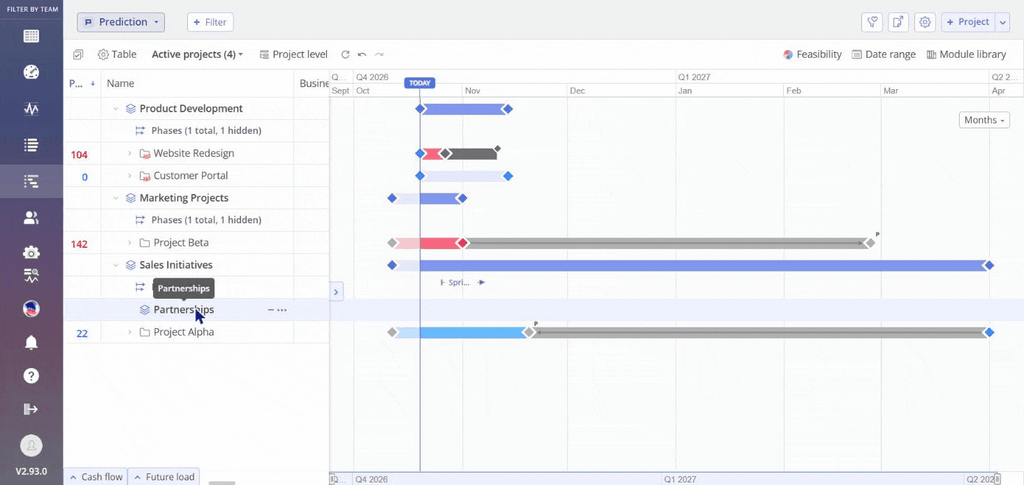
Screen #12 – Delete a project group