
Introduction
Epicflow offers several types of planning functionalities to help optimize project execution and resource management. Each method caters to different needs and project requirements, ensuring flexibility and precision in task allocation and scheduling.
Here’s a breakdown of the available planning types in Epicflow:
- Infinite Capacity Planning (Infinite capacity plan) is the functionality that automatically calculates the best possible way of executing tasks taking into account their duration and relations.
- Manual Planning (Manual plan) – provides a project manager with an opportunity to reposition items in the timeline as well as increase or reduce their duration manually for certain purposes. This functionality is created specifically for external communication. It has no effect on prioritization and load graphs.
- Single Project Prediction (Run Prediction (single project)) – identifies the sequence of accomplishing project tasks based on their priorities and/or business value and finite capacity for this project.
- Prediction – is used to set up the sequence of tasks when running multiple projects depending on their priority, business value, and finite capacity of all projects.
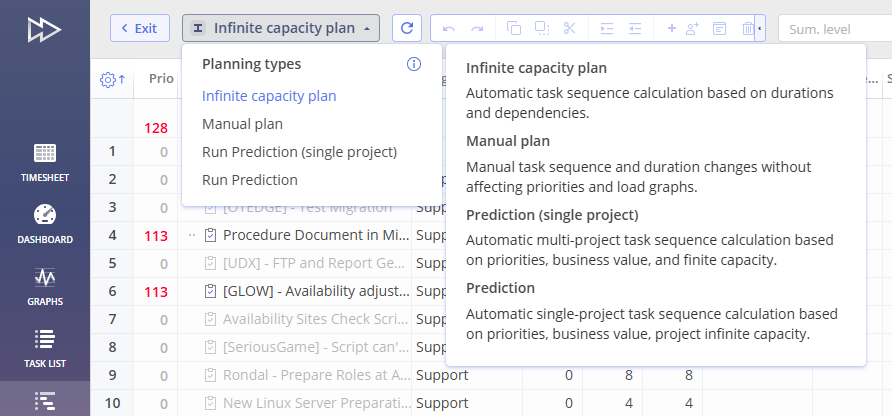
Screen #1 – Quick Edit Mode: Planning Types Selection
Planning Type – Infinite Capacity Planning
In this mode, Epicflow automatically plans the completion of all tasks as soon as possible based on their duration and relations between tasks and milestones in the project network. It assumes infinite resource capacity. With this planning type, the resource load graphs show you possible bottlenecks.
Possible Dates
If a task bar extends beyond the possible dates range, it indicates a delay, prompting action.
In Epicflow, you have two options to visualize possible dates for the item execution.
- in Quick Edit Mode
- in Task List Group View
Visualize possible Dates in Quick Edit Mode
- Open Quick Edit Mode of a project
- In the top right corner, click on the Gear Icon
- Check the option for ‘Possible Dates’
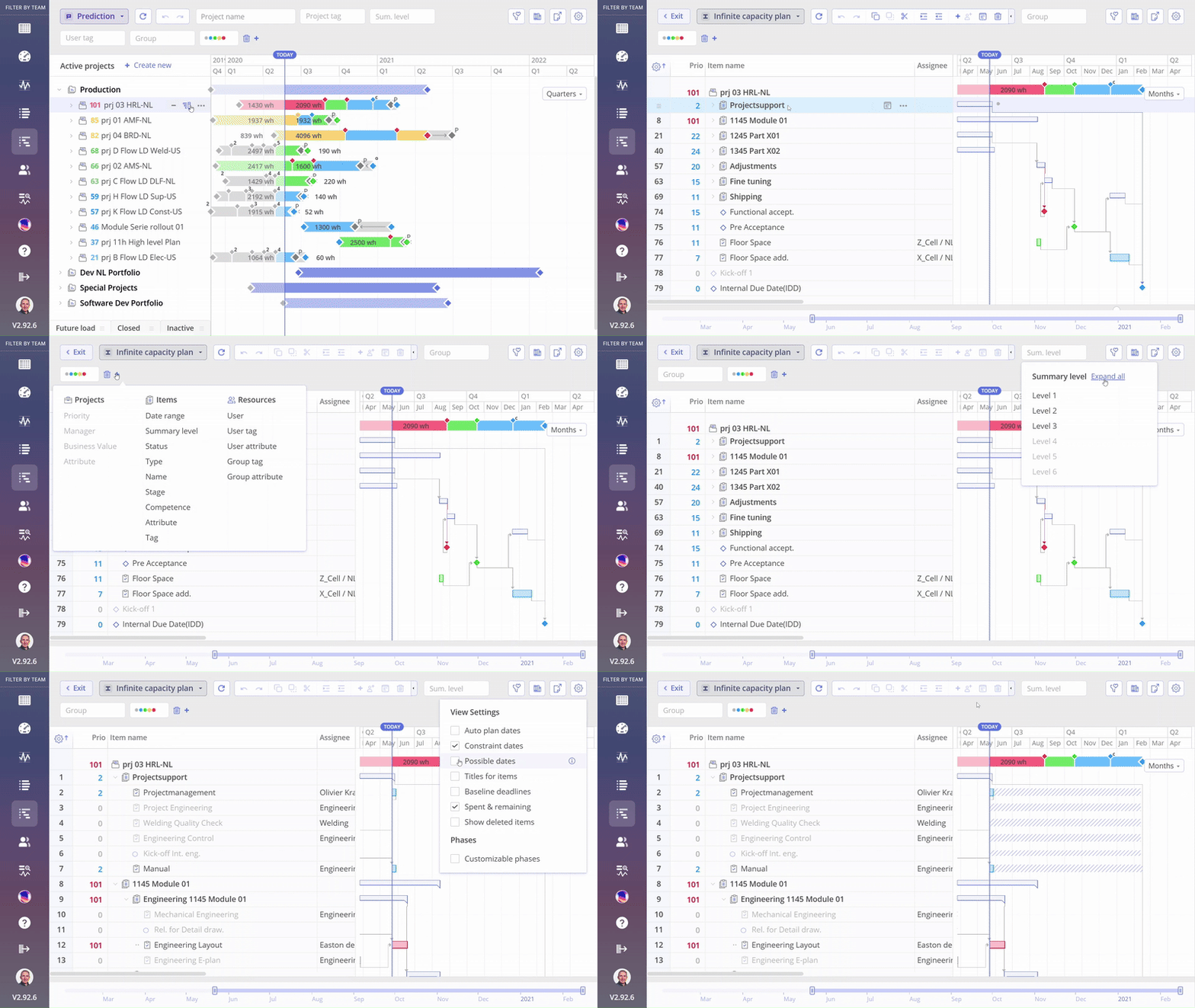
Screen #2– Enable Possible Dates in the Quick Edit Mode
Visualize possible Dates in Task List Group View
- Navigate to Task List Group View
- Enable the Timeline to view possible dates for task execution.
- In the top right corner, click on the Gear Icon
- Check the option for ‘Possible Dates’
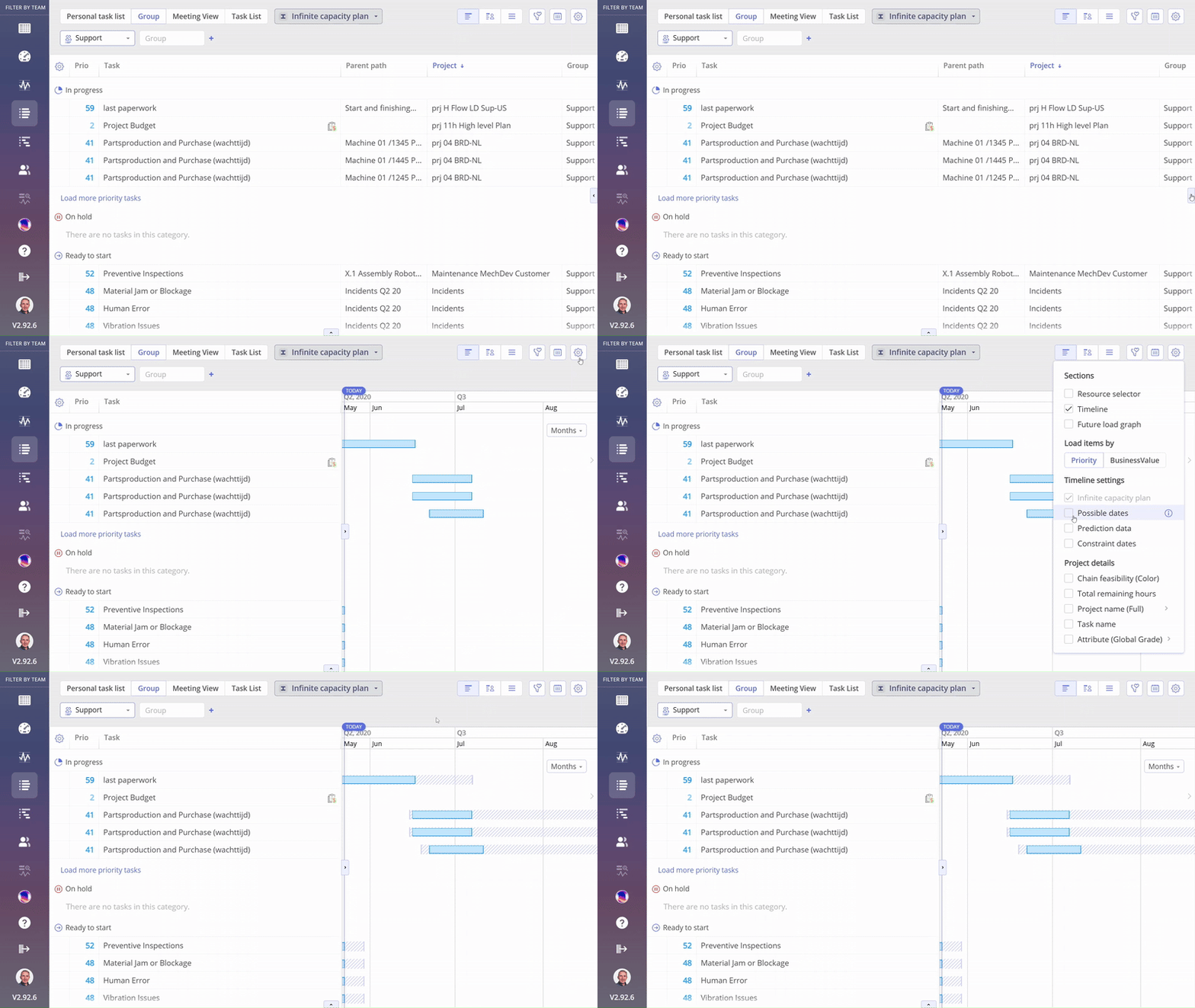
Screen #3– Enable Possible Dates in the Group Task List
Possible Dates Delay Example:
In the image below, you can observe that the CR Introduction Task is not predicted to be delayed, as the possible dates bar does not precede the task execution. However, the AB Introduction’s possible dates bar precedes the task execution, indicating a predicted delay that requires prompt action.

Screen #4 – Visualization of predicted delay
Prediction Data (RTS – Remaining Time to Start)
The Prediction view provides additional insights into task scheduling by displaying RTS (Remaining Time to Start) bars on the timeline.
RTS shows where a task would be positioned relative to its earliest possible start date, considering only predecessor delays and ignoring resource constraints. This allows users to clearly distinguish delays caused by dependencies from those caused by limited resource availability.
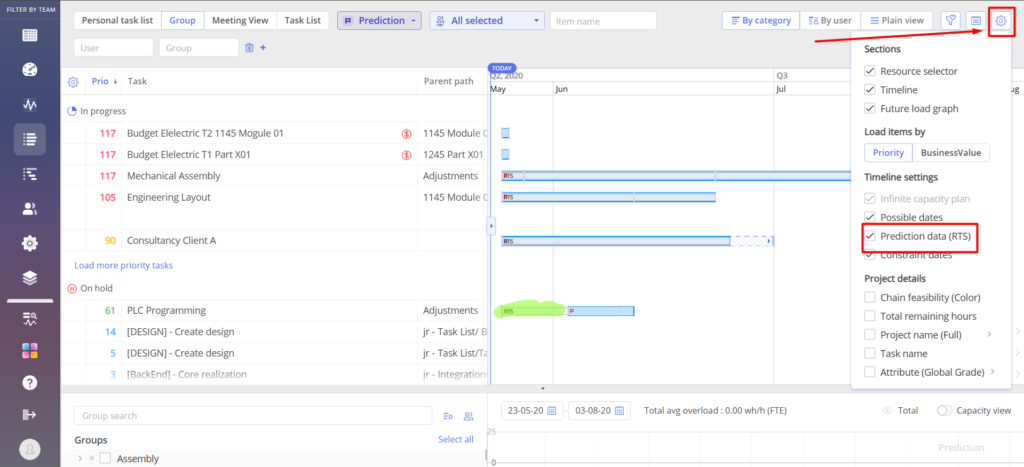
Screen #5 – RTS (Remaining Time to Start) Bars in Prediction View
Note: RTS bars are not available in Infinite Capacity Plan mode. In that mode, there are no resource constraints — every task is scheduled to start as soon as its predecessor finishes. Since all tasks are already at their earliest possible start, RTS has no additional meaning and is not displayed.
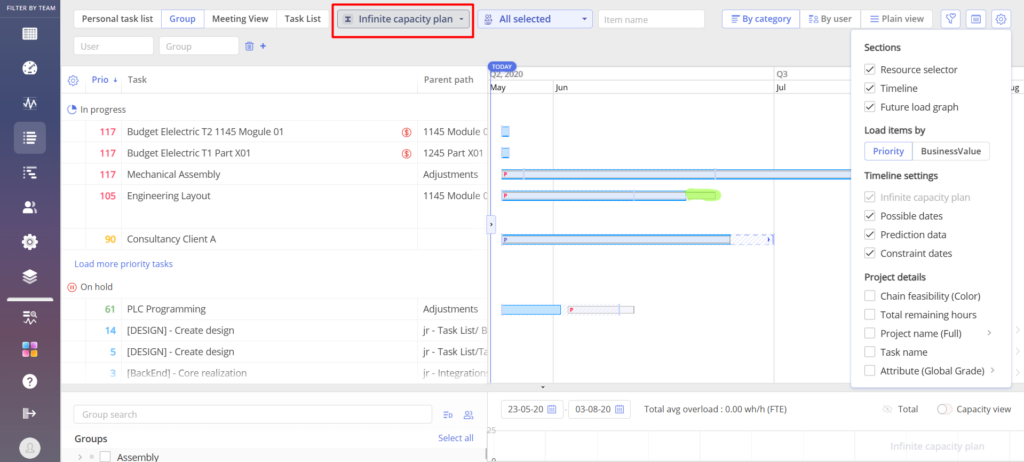
Screen #6 – Prediction Data option in Infinite Capacity Plan (RTS not shown)
How to Enable
- Enable Prediction data (RTS) under Timeline settings.
- Open the Group Task List.
- Click the gear icon in the top-right corner.
Planning Type – Prediction and Single Project Prediction
Prediction takes into account all projects and their interdependencies to create a sequence of task execution. This planning type considers the overall priorities and business value across all projects. This means that the system optimizes scheduling for the entire portfolio of projects, calculating task dates and generating a Gantt chart based on these priorities.
You can read more about it in the next article.
Planning Type – Manual Planning
As has been noted above, in the Manual Planning mode, you as a project manager can reposition project items in the timeline, expand or decrease their duration manually for special needs. For instance, a project manager can change the project duration before the meeting with clients to hide the float (buffer) from them as they may consider it as unnecessary idle time. Besides, a PM can apply manual planning just to compare their own approach to the execution of the project and the way the Epicflow system suggests to run it.
Epicflow algorithms provide the best possible way to complete your multiple projects on time, so the Manual Planning functionality is just a way of communicating with clients. It has no effect on prioritization and load graphs.
Let’s consider the ways you can plan your project flow manually.
Repositioning Items
To plan the order of completing project tasks and summaries, a Project Manager (PM) can use an item re-positioning option provided by the “Manual Plan” mode by drag-and-drop directly from the Gantt chart.
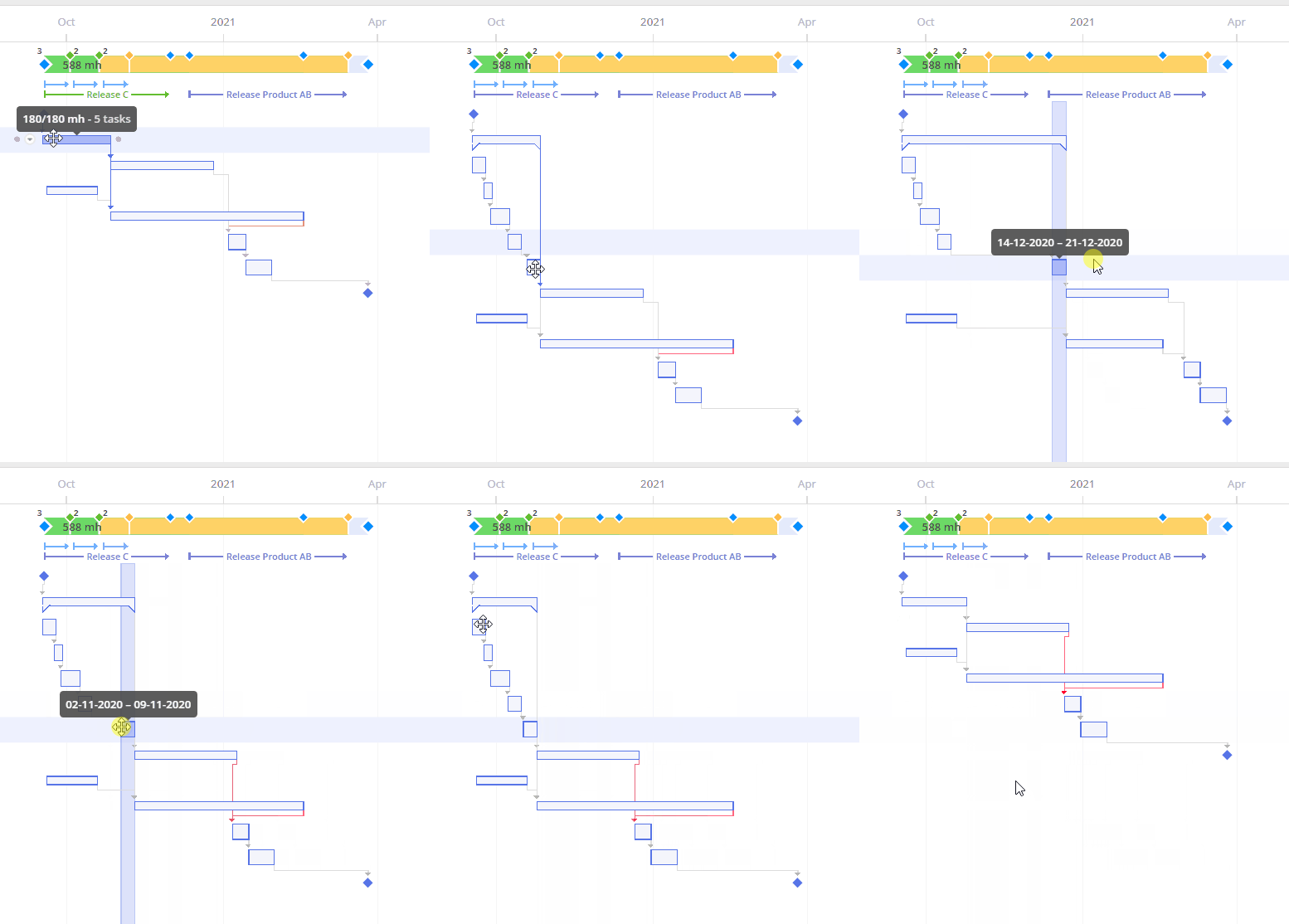
Screen #7– Planning Mode – Task Repositioning
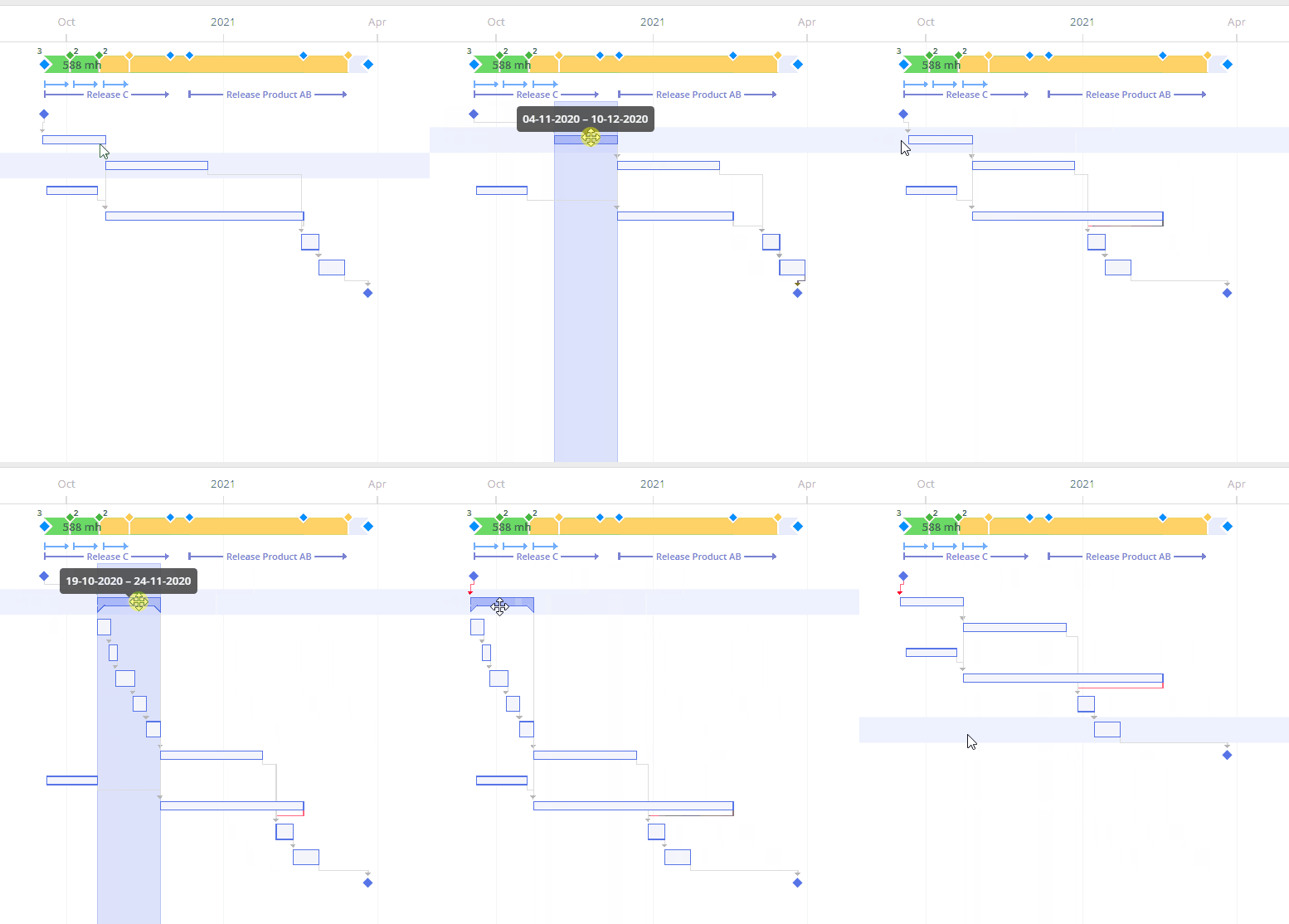
Screen #8 – Planning Mode – Summary Repositioning
Remember that any Summary or Task position changes will affect all the chain of successors but won’t change predecessors.
If a Summary contains a milestone, the repositioning will limit one of the Summary boundaries.
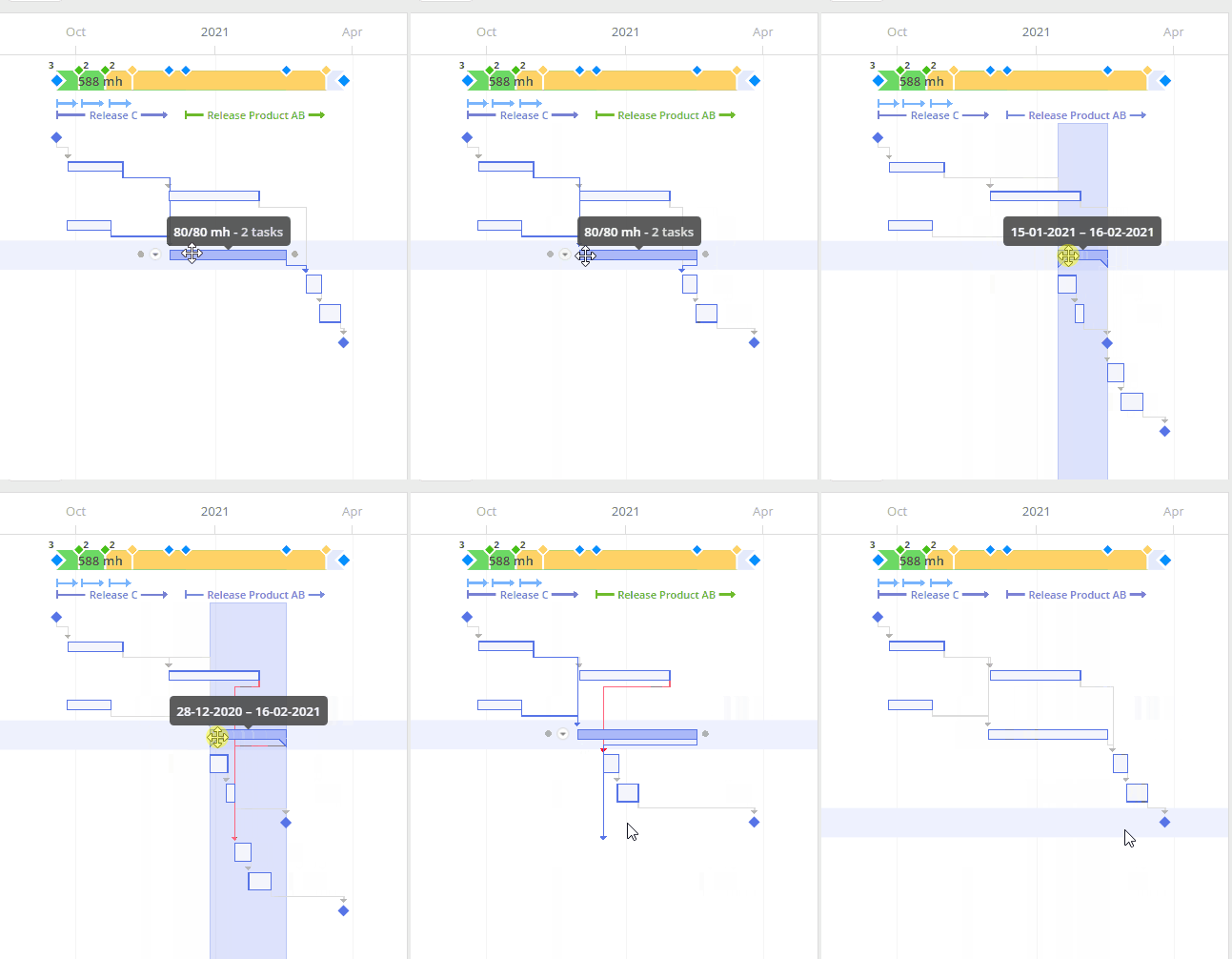
Screen #9 – Planning Mode – Repositioning Summary with a Milestone
For all actions like this, the order of Summary sub-items remains unchanged.
To reset the item’s position to the initial one select the “Reset to Auto Plan” option in the context menu.
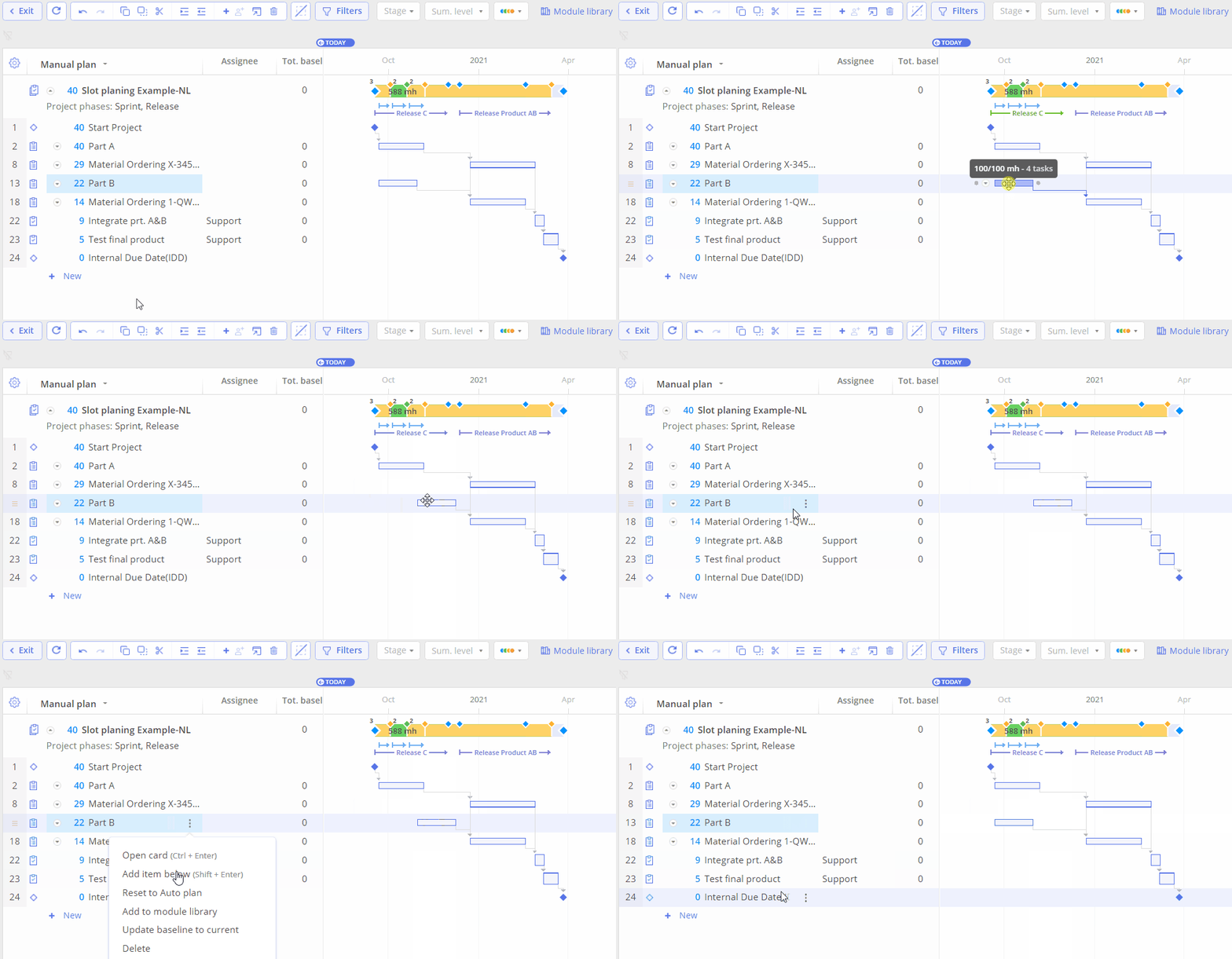
Screen #10 – Planning Mode – Position Reset
Please note that the position reset will be applied only for the selected item.
Changing Duration
Task duration is one of the main parameters in project planning. It can be changed only in the “Manual plan” mode view.
You can extend or decrease task duration by using a special separator located to the right of the task at a Gantt chart. Please, note that this element appears only for tasks. The Summary duration can be adjusted only by changing its sub-items’ positions.
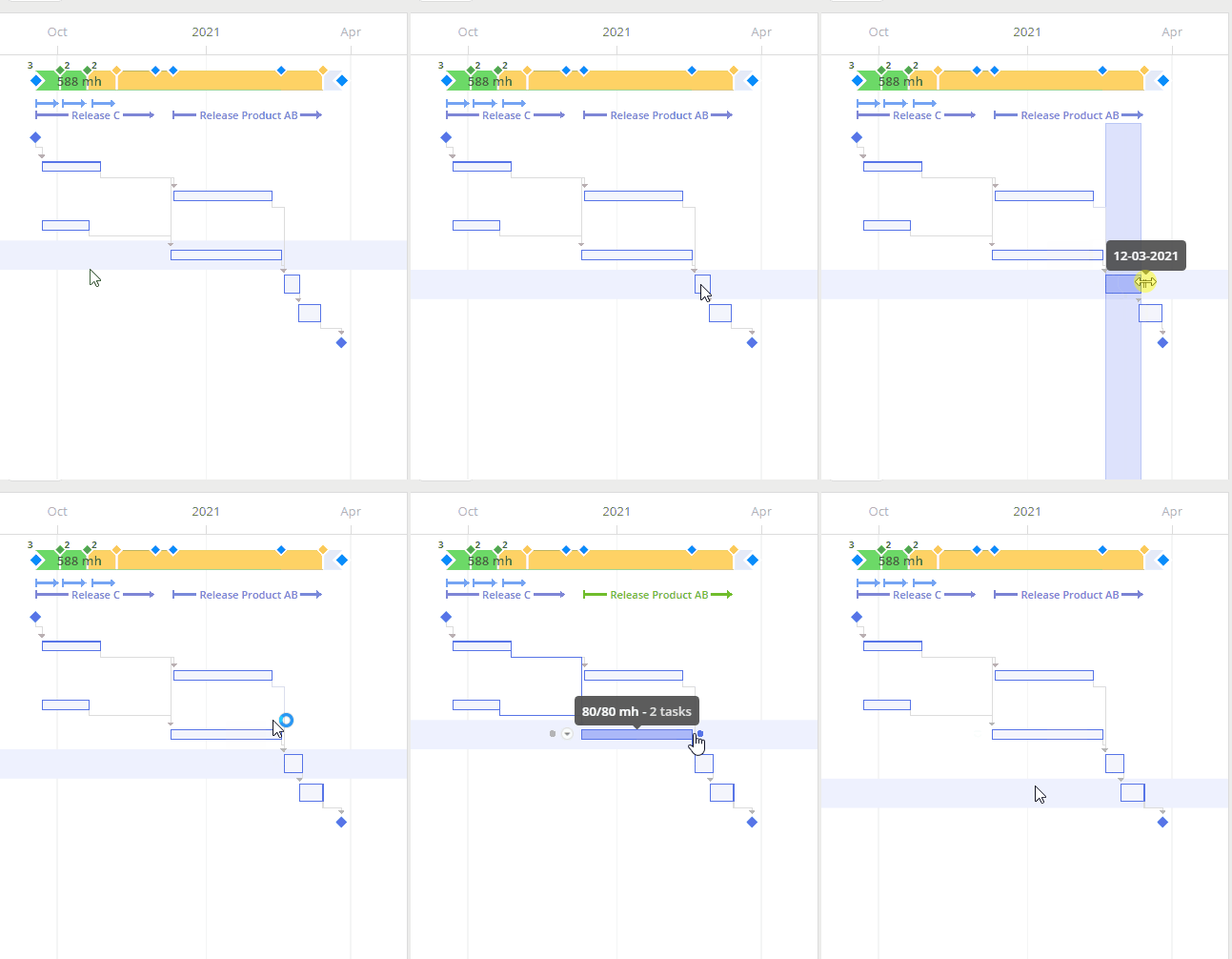
Screen #11 – Planning Mode – Task Duration
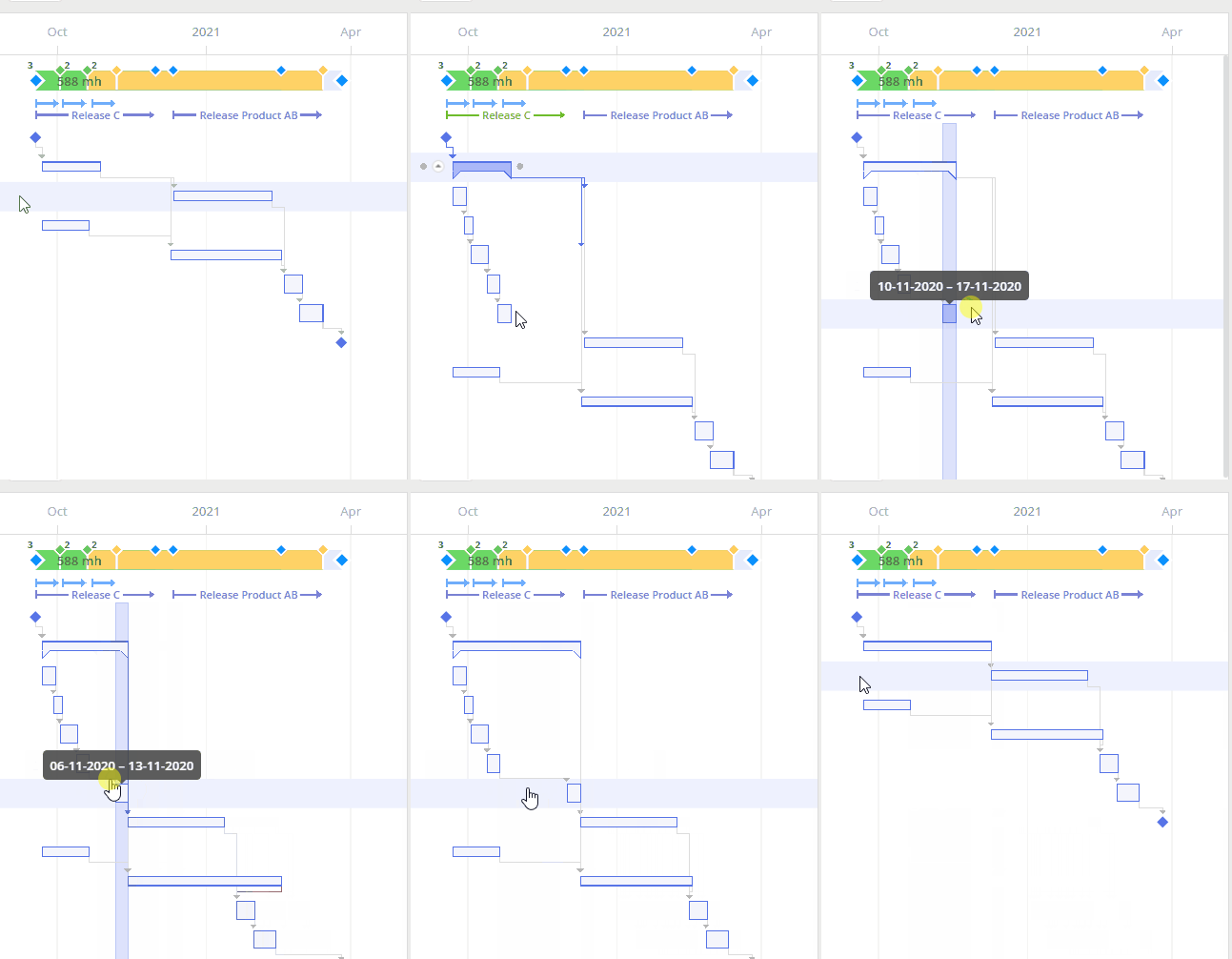
Screen #12 – Planning Mode – Changing Summary Duration
Keep in mind that initial estimations won’t be changed as a result of this action.