
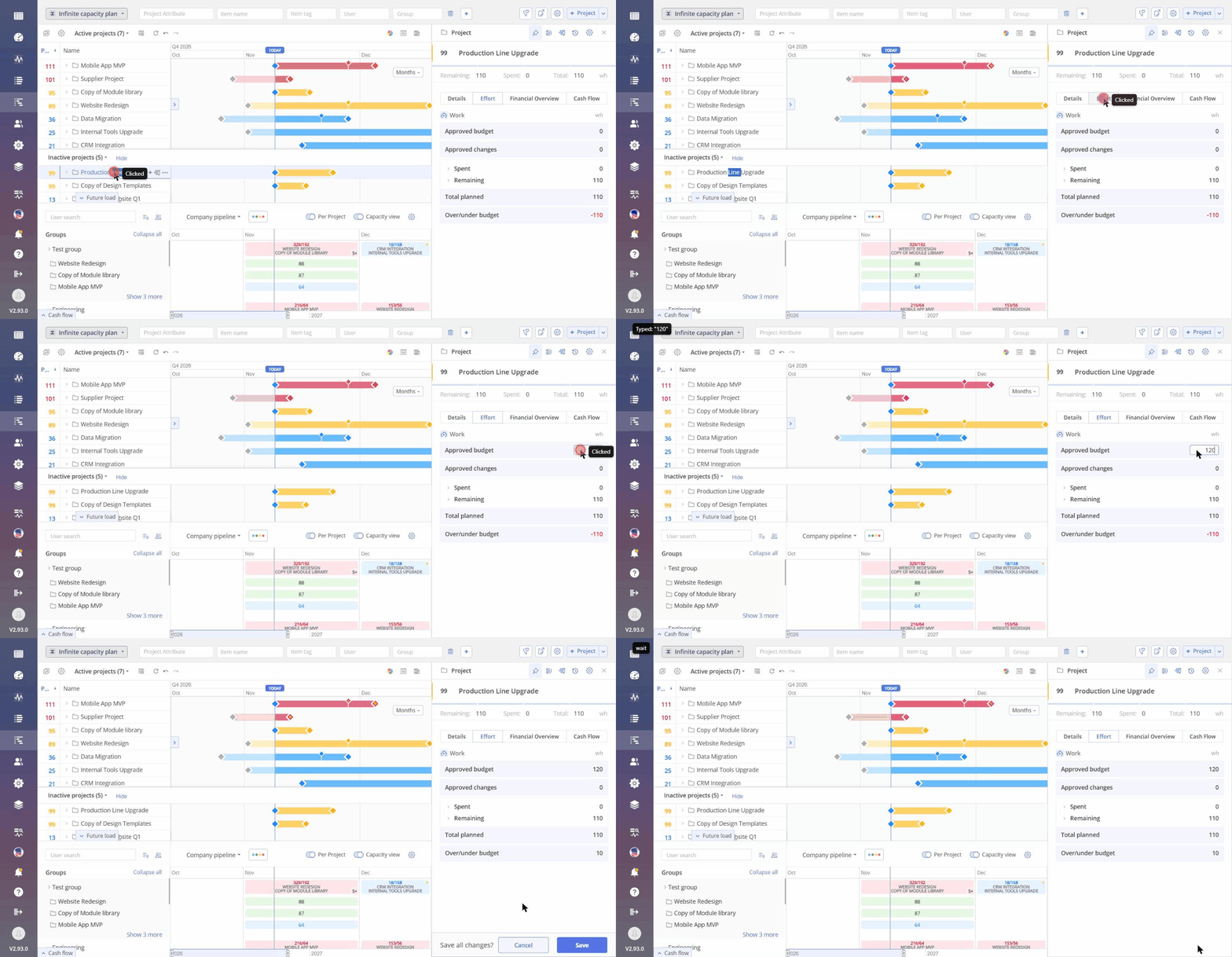
Screen #1 – Setting the approved budget
Budgets in Epicflow let you set aside a number of work hours and track how many of them your tasks use. There are two kinds:
- Approved budget – the total hours approved for the whole project. You compare it with the hours actually planned.
- Budget tasks – a reserve of hours for one group of people inside one part of the project, such as a module. Tasks for that group use up these hours automatically.
For budgets assigned to teams, see Team budget.
Set the project’s approved budget
- In Pipeline, double-click the project name. The Project card opens.
- Open the Effort tab.
- Click the number next to Approved budget, type the approved hours and press Enter.
- Click Save at the bottom of the card (Screen #1).
Over/under budget now shows the difference between Approved budget plus Approved changes and Total planned. A positive number means hours are still free. A negative number (shown in red) means more hours are planned than approved.
Create a budget task
- Open the project and add a task inside the summary (module) the budget is for.
- In the Assignee column, choose the group whose hours you are budgeting, e.g. Engineering (required).
- In the Total column, enter the budgeted hours (required).
- Open the task card with the card icon next to the task name.
- Under Attributes, click + (or + Add attribute) and choose Budget (required).
- Click anywhere outside the list, then click Save (Screen #2).
The card title changes from Task to Budget and the task gets a budget icon. The Assi… column shows Auto.
To split a budget between specific people, see Budget distribution.
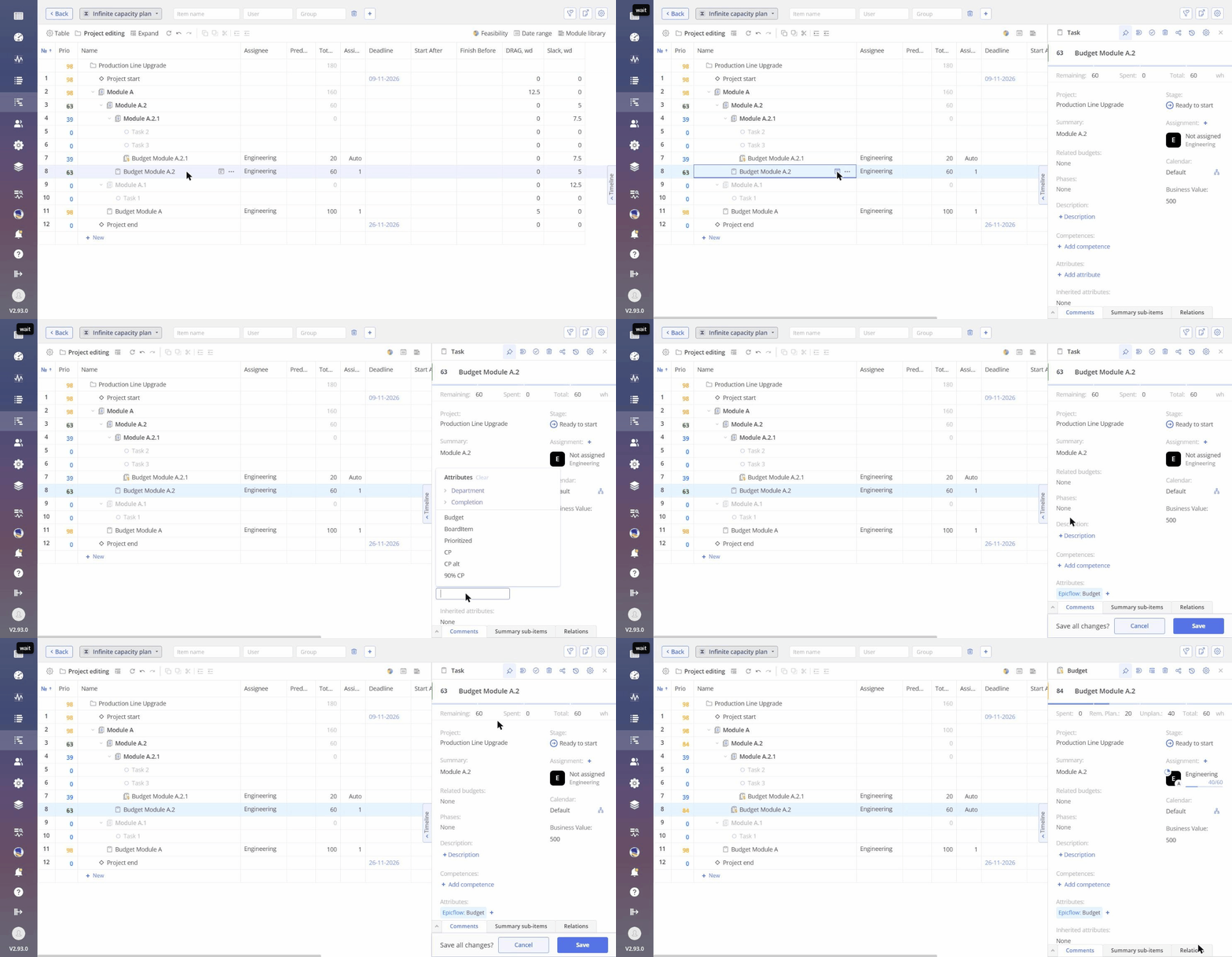
Screen #2 – Turning a task into a budget task
Show which budget a task uses
- Open any task card.
- Click the gear icon at the top of the card.
- Tick Related Budgets (Screen #3).
The task card now shows the budget the task uses, or None. For more examples, see Related Budgets and Tasks.
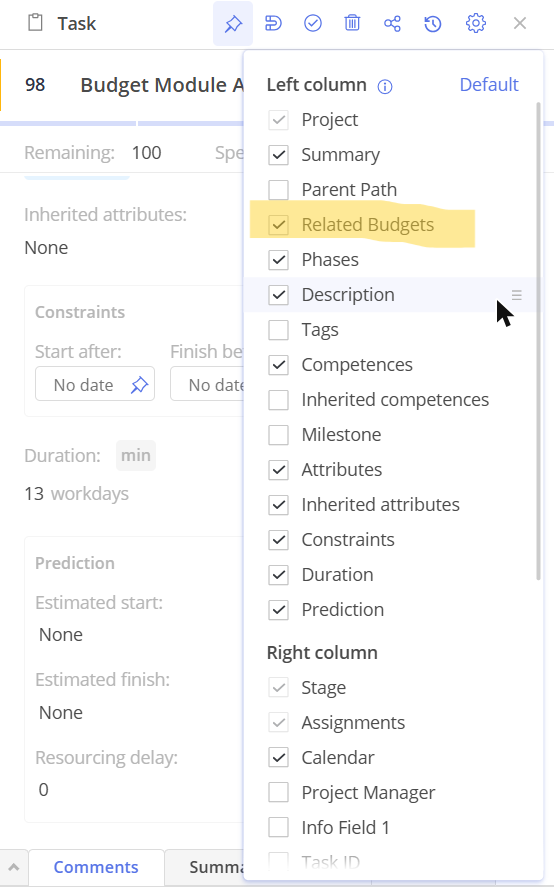
Screen #3 – Turning on the Related Budgets field
How tasks use a budget
You don’t link tasks to a budget by hand. A task uses a budget automatically when all of these are true:
- the task is in the same summary as the budget task, or in a summary below it;
- the task is assigned to the budget’s group, or to a person from that group;
- if the budget has a phase, the task has the same phase.
The task card then shows the budget under Related budgets (Screen #4).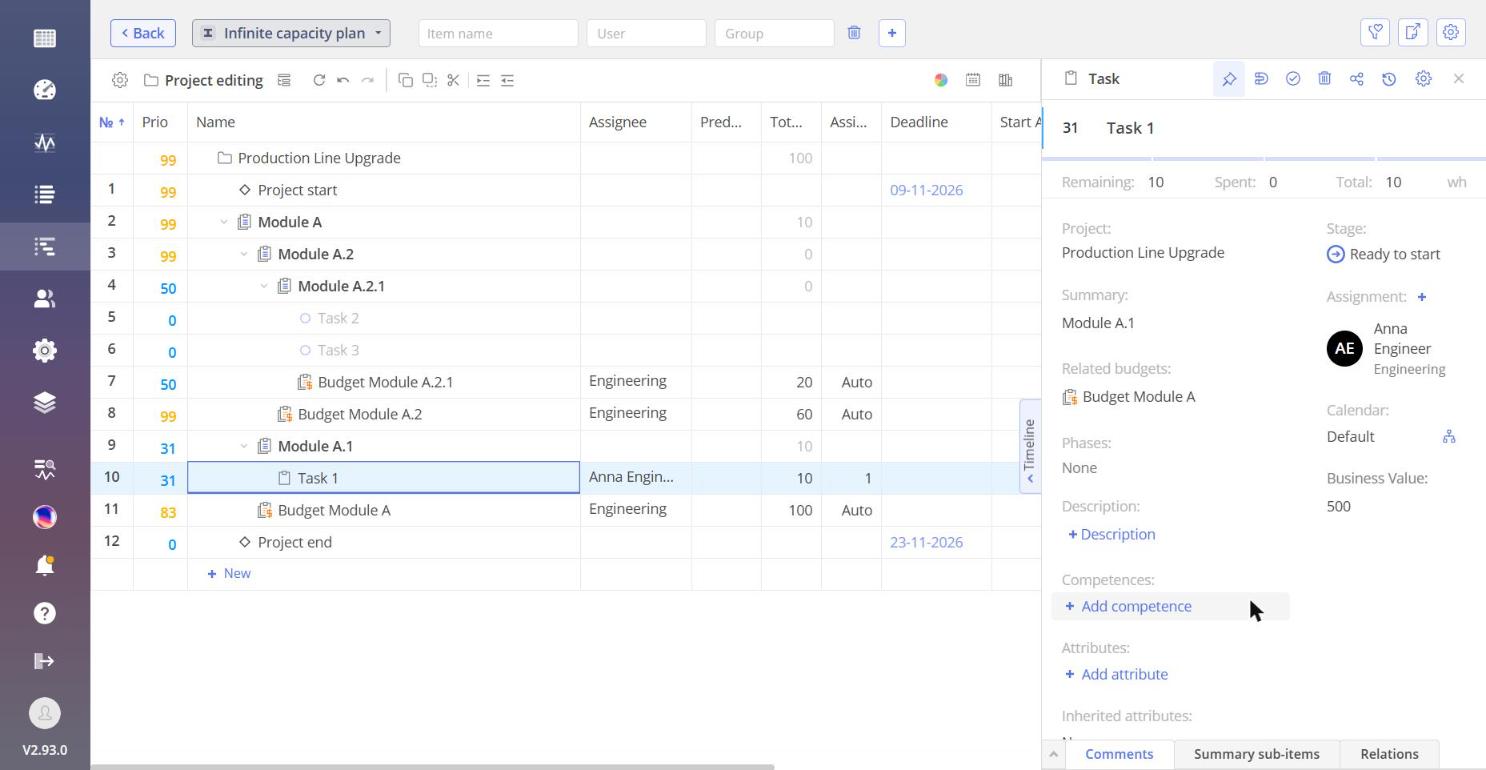
Screen #4 – A task that uses Budget Module A
A task assigned to a different group does not use the budget. Its hours are added to the project total (Screen #5).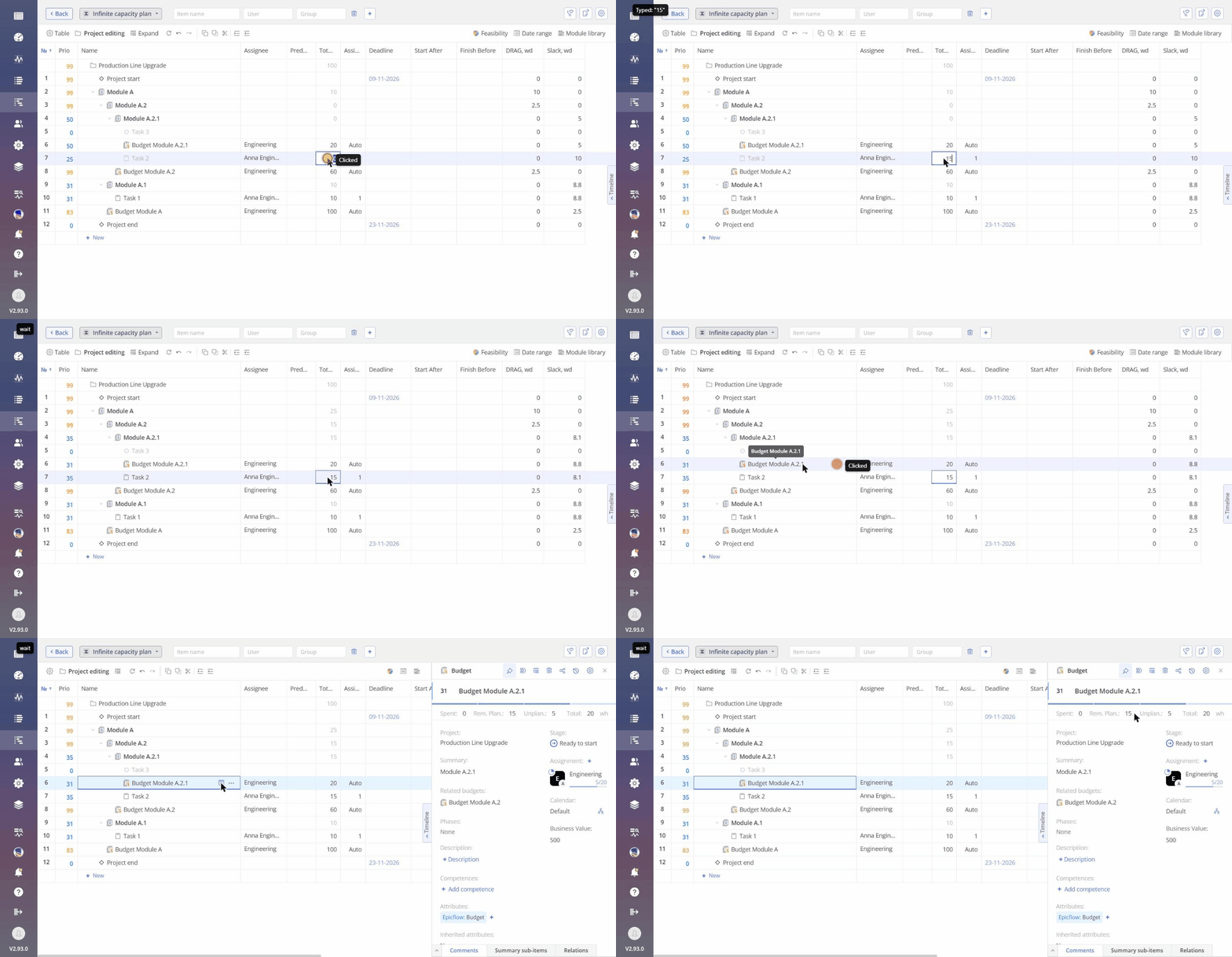
Screen #5 – A task from another group has no related budget
Budgets and phases
- A budget without a phase counts all tasks, whatever their phase.
- A budget with a phase counts only tasks in that same phase. Tasks without a phase, or in a different phase, do not use it (Screen #6).
Screen #6 – A budget in the Design phase counts only Design tasks
Read the budget numbers
The top of a budget card shows four numbers (Screen #7):
- Spent – hours already logged on tasks that use this budget.
- Rem. Plan. – remaining hours on tasks that use this budget.
- Unplan. – budget hours not yet given to any task.
- Total – the budget size.
When you add or change a task that uses the budget, Rem. Plan. goes up and Unplan. goes down by the same amount.
Screen #7 – A 15-hour task uses part of a 20-hour budget
To see all budget tasks and the tasks that use them in one list, see Working with the budgets.
Budgets inside budgets
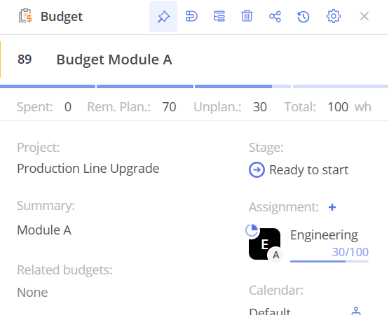
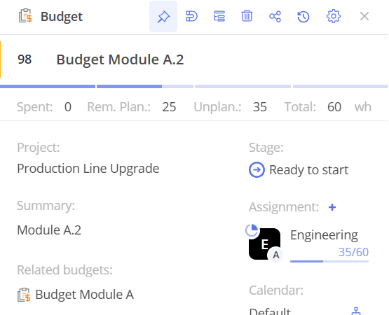
You can place a smaller budget inside a summary that already has a budget, e.g. Budget Module A.2.1 inside Module A.2. The smaller budget uses hours from the bigger one in the same way a task does (Screen #8).
- An empty smaller budget still reserves all of its hours in the bigger budget.
- Tasks inside the smaller budget’s summary use the smaller budget first.
Screen #8 – Budget Module A: 60 hours reserved by Budget Module A.2 plus 10 hours from Task 1
When a budget runs out
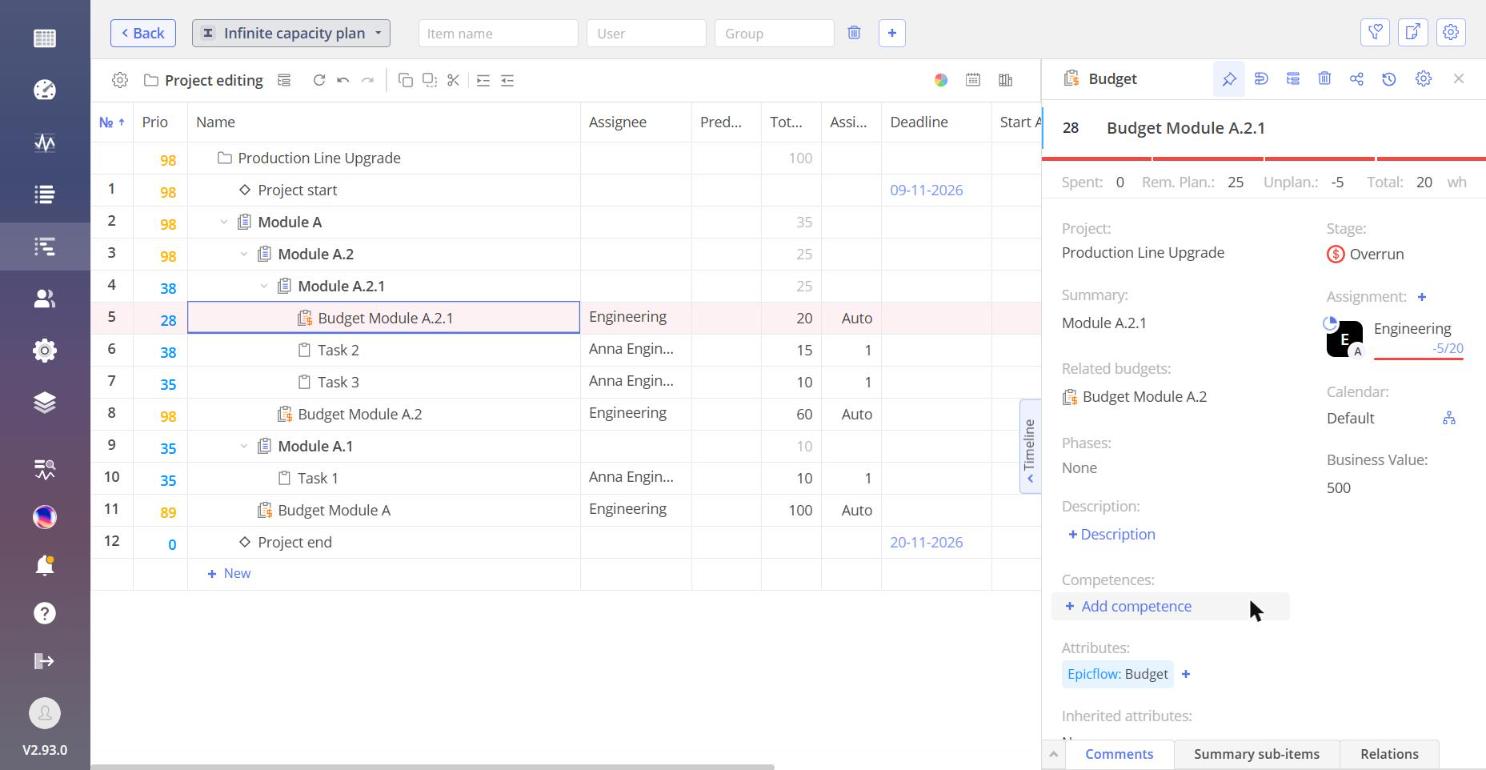
If tasks need more hours than the budget has, the budget is not extended (Screen #9):
- the budget’s stage changes to Overrun;
- a red $ icon appears next to the budget name;
- Unplan. becomes negative, e.g. −5;
- the extra hours are counted against the next budget up, if there is one.
To fix an overrun, increase the budget’s Total, or reduce the hours on its tasks.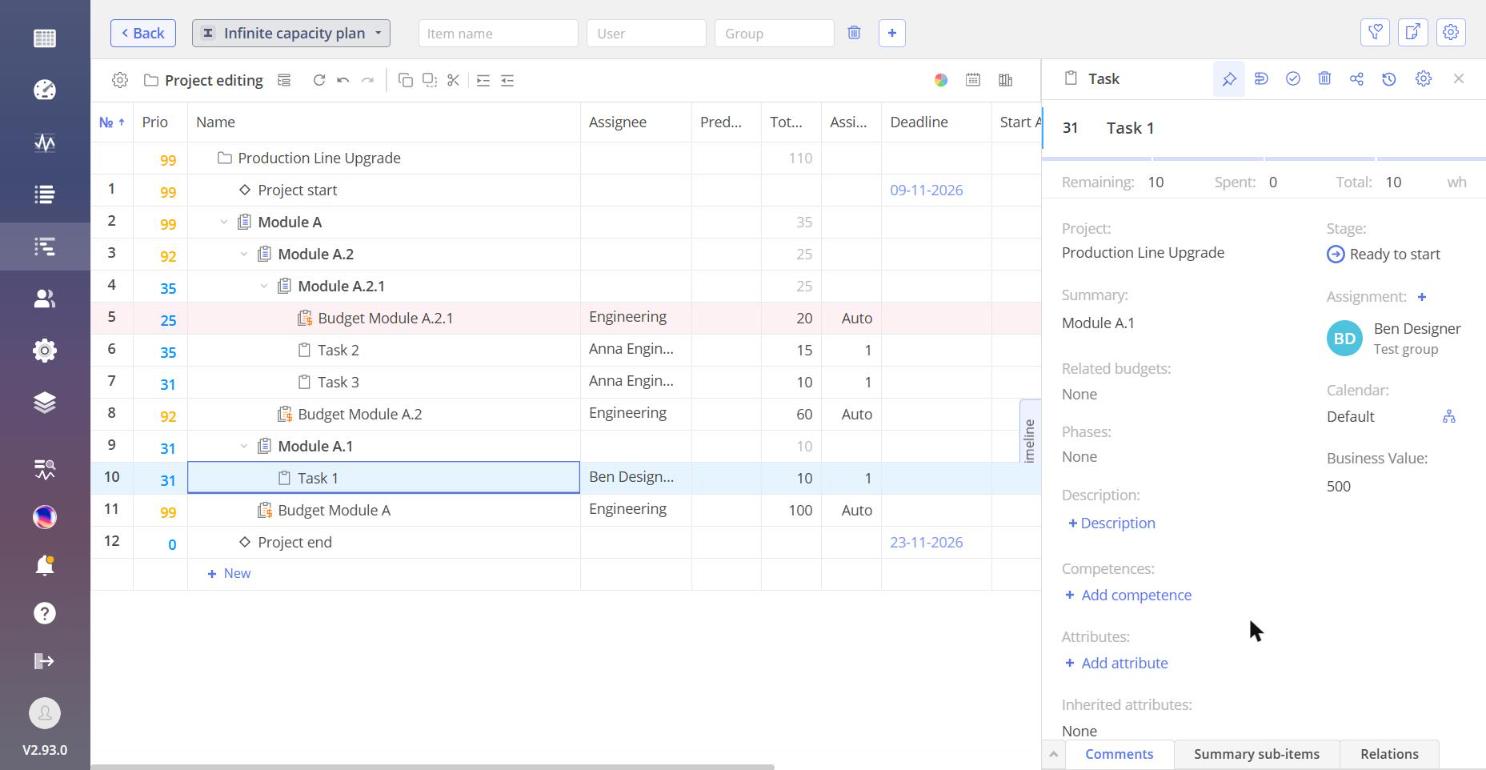
Screen #9 – A 20-hour budget with 25 planned hours is in Overrun
Who can work with budgets
An administrator sets this in Settings → Roles & Permissions (Screens #10 and #11):
- Task, Summaries and Milestones → Create & Delete Budget Tasks – create and delete budget tasks.
- Task card fields → Item Attributes – must be Manage to add the Budget attribute.
- Task card fields → Related Budgets – View or No Access.
- Project permissions → Project approved budget – No Access, View or Manage.
Screen #10 – Budget task permission
Screen #11 – Approved budget permission
If it doesn’t work
- Budget is not in the attribute list: make sure the role has Item Attributes set to Manage.
- A task doesn’t use the budget:
- check that the task’s assignee belongs to the budget’s group;
- check that the task is in the budget’s summary or below it;
- if the budget has a phase, check that the task is in the same phase.
- Changes on the card disappear: click Save in the “Save all changes?” bar at the bottom of the card.
Still stuck? Contact us at support@epicflow.com.
Current limitations
- Overruns are not covered automatically. A budget that runs out is not extended. The extra hours show as Overrun and count against the parent budget.
- Approved changes can’t be edited on the Project card.
- Phases linked to the project start or end can break Project editing. Creating a phase with “Link phase start to project start” or “Link phase end to project end” can stop the project from opening. Set fixed start and due dates for phases instead.